 Clod Clash
Common errors
What a message in the app means and what to do about it
"The provider returned a link list instead of a configuration — its panel did not recognise the client"
The provider's panel doesn't know about Clod Clash and returned its default response. This is a setting on the provider's side — send support the link to the section for providers. Until the rule is added, you can specify a different User-Agent under "Advanced" when adding the subscription.
"The subscription address must start with https"
The app only accepts subscriptions over https://, otherwise the token would travel
in plain text. Ask the provider to change the address, or add the
subscription again using a link that starts with https://.
No servers
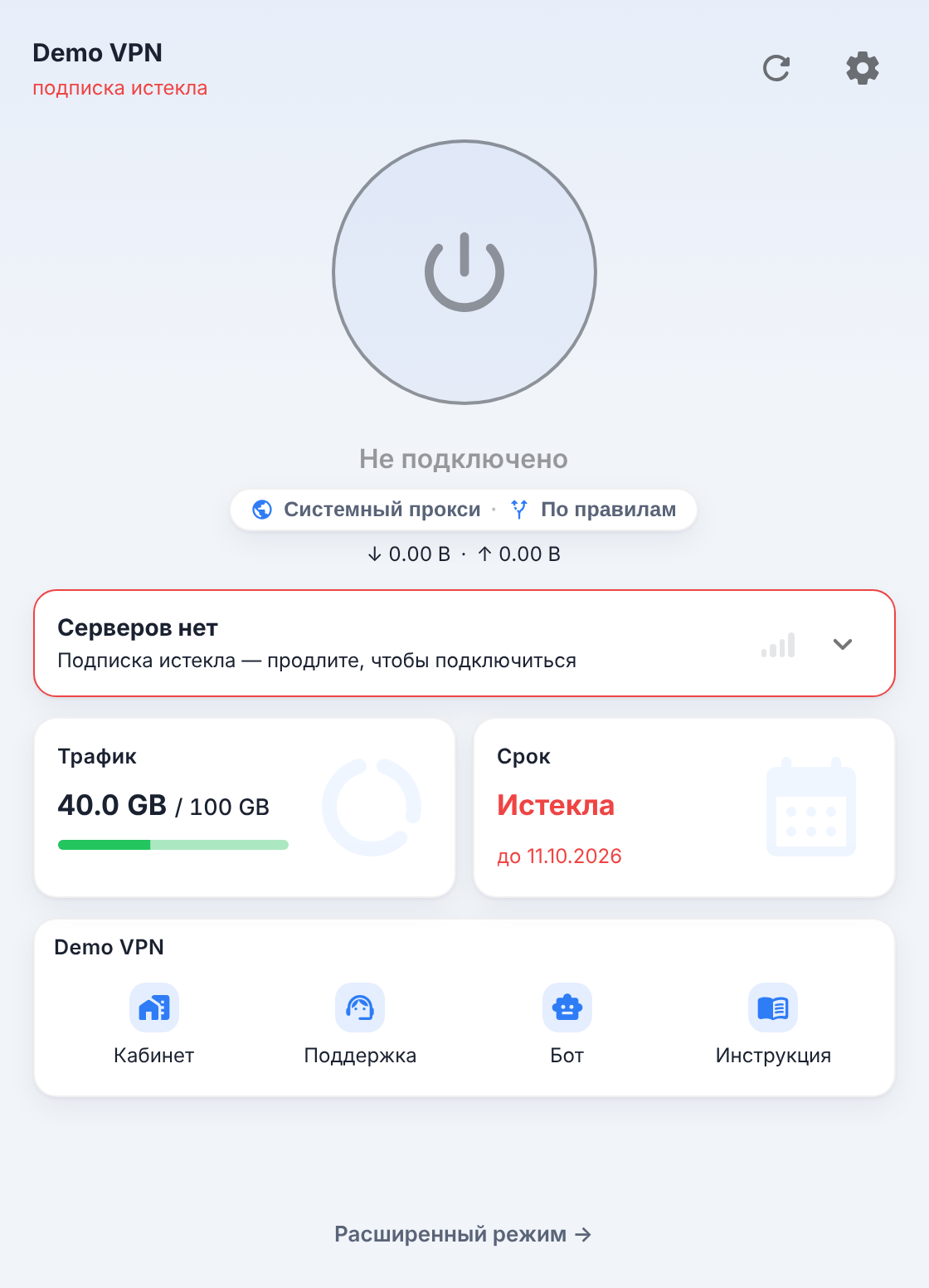
The "No servers" card on the home screen explains the reason in words: the subscription expired, traffic ran out, the device limit was reached, device identification is required, or the provider sent no servers. Renew the subscription or top up traffic with the provider and update the subscription with the ↻ button. With a device limit, only the provider can free up a slot — use the Support button in the limit window.
Connected, but sites don't open
- Press Test in the server list and pick a server that shows a latency, not "Timeout".
- Switch the mode to Global (tray menu → "Mode" or Settings → Advanced settings → Clash Setting) — if it starts working, the problem is in the subscription's rules; report it to the provider.
- If you use TUN on Windows with the
system/mixedstack, look for the firewall warning on the home screen or switch togvisor. - Check whether a second VPN client is running: two clients don't work at the same time — there's one system proxy and one TUN adapter for everyone.
- On Windows with TUN nothing opens at all, while without TUN everything works — see "TUN is on, but nothing opens at all (Windows)" below.
- On macOS the system proxy is on, but traffic goes directly. This happens if
the network was configured from the terminal with
sudo ipconfig set …before that: the command creates a temporary network connection, and on a network without IPv6 the system proxy has no effect on it. Restart the Mac and turn the proxy on again.
"Port … is held by another application" notification
The proxy port (the one you set, otherwise the one from the subscription, otherwise 7897) is held by another program — the core started but can't listen on it, and traffic through the system proxy won't flow. If it's a previous copy of the client or the core, fully restart the app via the tray icon. If the notification appeared right after the "Upgrade" button in the core window on Windows, restart the computer: the extra copy of the core runs as the system, and restarting the app doesn't close it. Otherwise close that program or change the port: the "Change the port in the settings" link in the notification → Advanced settings → Clash Setting → "Port Config". The port is not reassigned automatically.
"The core is not running — no traffic goes through"
This line on the home screen means the core is stopped and traffic goes nowhere. Press "Start" next to it; if the core fails to come up again, look at the notification with the reason or export the logs.
"The core started but does not answer"
The app waited for the core process but got no response from it within a few seconds and stopped it, so as not to show "connected" with a dead core. Usually "Restart Core" helps (tray menu → "More"); if it keeps happening, export the logs — the core log will show the reason.
The subscription updated but is marked "not applied"
The new config was rejected by the core itself, or it can't be assembled for the background service (for example, two rule sets are written to the same file). The previous working config stays on disk, traffic goes through it, and the reason is shown in a notification. The cause may be the provider's template or your own edits in merge, script, rules and groups: check your edits; everything else is fixed on the provider's side. The next successful update will be applied normally.
"This configuration cannot be handed to the background service"
The core is running without the service, so TUN is unavailable, while the system proxy works. Fix the config (usually it's a manual merge with a provider path outside the config folder), then press "Restart Core" or turn TUN off and back on — the core will move under the service together with the tunnel.
Nothing opens after sleep or a network change
The app notices sleep and loss of the network path on all systems: after waking up it closes stuck connections, checks the tunnel and the system proxy, and writes to the log how long the machine slept and what was done. If the problem still remains, export the logs: the sleep entry shows whether this is that situation.
TUN won't turn on
- "The TUN adapter is held by another client" — close the other VPN client or restart.
- A line under the button with a reason and a "Set up" button — "TUN did not start", "The background service does not answer", "Not enough rights for the tunnel", "The rights prompt was declined" and others. "Set up" installs or repairs the service, with one rights prompt. You can also install the service manually — the wrench icon next to the "TUN Mode" switch in Settings → System Setting. Bringing the tunnel up gets three attempts, after which the reason is shown in words; sleep and a network change don't resume the attempts if the problem is rights — turn TUN on again.
- Linux: an error about pkexec — install polkit or run once
sudo /usr/bin/clash-verge-service-install. - macOS: DNS wasn't restored after a crash — the app restores the system DNS by itself on the next launch; just launch it again. If only the core went down and did not come back, the system DNS is returned right away, and the override comes back with the core.
Switched server, but a download keeps using the old one
New connections always go through the selected server. Already open ones depend on where you switched the node from:
- The "Proxies" page and the tray menu — the app closes connections whose chain goes through the previous node, and only those: connections through other servers are left alone. A download or a call will drop and reconnect through the new server.
- The home screen — by default connections aren't closed: a download already in progress finishes through the previous server while it's alive. This is so that flipping through servers on the home screen doesn't break your work on every tap.
To have everything move over right away, switch the server on the "Proxies" page or from the tray — or turn on "Close connections on Home server switch" (off by default). This switch and the main one, "Auto Close Connections" (on by default), are in Settings → Advanced settings → Appearance and behaviour → "Miscellaneous". If the main one is off, connections are not closed anywhere.
"TUN is up but no traffic is flowing through the tunnel"
This notification appears when the core's proxy answers but connections through the
tunnel don't: programs that go online without proxy settings can't open anything. On Windows with system/mixed this is
almost always the firewall — press "Fix" on the home screen. In other cases
try a different stack in the TUN dialog.
"TUN is up but the system sends traffic around the tunnel"
This notification appears when the system sends internet traffic straight through the network card instead of the tunnel: sites open, but not through the VPN. The app first reconnects the tunnel once by itself, the same as turning TUN off and on by hand; the notification means that did not help. Most often another VPN or a virtual network adapter has taken the route: turn it off and toggle TUN.
TUN is on, but nothing opens at all (Windows)
What it looks like: without TUN everything works, but with TUN the whole internet is gone — both through servers and directly. All servers show "Timeout", and there is no error on screen.
A common cause is IPv4 forwarding turned on for the network adapter in Windows. It is turned on by, for example, Mobile hotspot and Internet Connection Sharing, and sometimes by virtualization software. While it is on, Windows sends the app's own connections back into the tunnel, and they go round in circles.
1. Check. Turn TUN off, open PowerShell (Win+X → "Terminal" on Windows 11 or "Windows PowerShell" on Windows 10) and run:
Get-NetIPInterface -AddressFamily IPv4 | ft ifIndex,InterfaceAlias,Forwarding,ConnectionState -AutoSizeExample output:
ifIndex InterfaceAlias              Forwarding ConnectionState
------- --------------              ---------- ---------------
     14 Wi-Fi                          Enabled       Connected
      1 Loopback Pseudo-Interface 1   Disabled       Connected
Look at the adapter the computer uses to reach the internet — usually Wi-Fi or
Ethernet with the Connected state. If its Forwarding column says Enabled,
this is the cause — go to step 2. If it says Disabled, the problem is elsewhere:
export the logs and ask in the chat (see "Didn't find yours" below).
2. Turn forwarding off. Open PowerShell as administrator
(Win+X → "Terminal (Admin)" on Windows 11 or "Windows PowerShell (Admin)" on
Windows 10) and run the command, replacing Wi-Fi with your
adapter's name from the InterfaceAlias column:
Set-NetIPInterface -InterfaceAlias "Wi-Fi" -AddressFamily IPv4 -Forwarding DisabledThe command prints nothing — that's normal. Repeat the check from step 1; the
adapter should now show Disabled:
ifIndex InterfaceAlias              Forwarding ConnectionState
------- --------------              ---------- ---------------
     14 Wi-Fi                         Disabled       Connected
      1 Loopback Pseudo-Interface 1   Disabled       Connected
Turn TUN on again — the internet should come back.
3. To keep forwarding from coming back after a reboot, check the system-wide Windows setting:
(Get-ItemProperty HKLM:\SYSTEM\CurrentControlSet\Services\Tcpip\Parameters).IPEnableRouterExample output:
11 means forwarding is on for the whole system and will come back after a
reboot. Turn it off (PowerShell as administrator) and restart the computer:
Set-ItemProperty HKLM:\SYSTEM\CurrentControlSet\Services\Tcpip\Parameters -Name IPEnableRouter -Value 0If the output is 0 or empty, this part is fine and step 2 is enough. Forwarding
may turn on again when you start Mobile hotspot or Internet Connection Sharing —
then repeat step 2.
While forwarding is off, sharing the internet from this computer (hotspot,
Internet Connection Sharing) doesn't work, and if virtualization software turned
it on, virtual machines, WSL or Docker may lose their network. To undo, run the step 2 command with
Enabled instead of Disabled.
The app froze
On Windows a built-in watchdog keeps an eye on the window: if the interface doesn't respond for longer than 20 seconds, the app restarts itself, and the log records exactly when it happened. If freezes keep happening, export the logs and attach them to your request.
Clock and subscription expiry
The expiry is calculated by the provider's clock, not the computer's, so a wrong time on the machine doesn't shift it. If the expiry still looks odd, update the subscription manually.
Where the logs are
Settings → Advanced settings → Maintenance: "Open Logs Dir"
shows the app and core files; "Export logs as an archive" collects them into a single
.zip together with the report — subscription addresses, tokens and the user name in it are already
masked. "App Log Level" is in Appearance and behaviour →
"Miscellaneous"; on new installations it's debug.
Didn't find yours
Ask in the Telegram chat — attach the support report, the app version and your system. News and releases are published in the Telegram group.