 Clod Clash
All settings
What the settings contain: system, general, advanced, tools and maintenance
Settings open with the ⚙ gear in the home screen header (in advanced mode — with the Settings tile).
System Setting
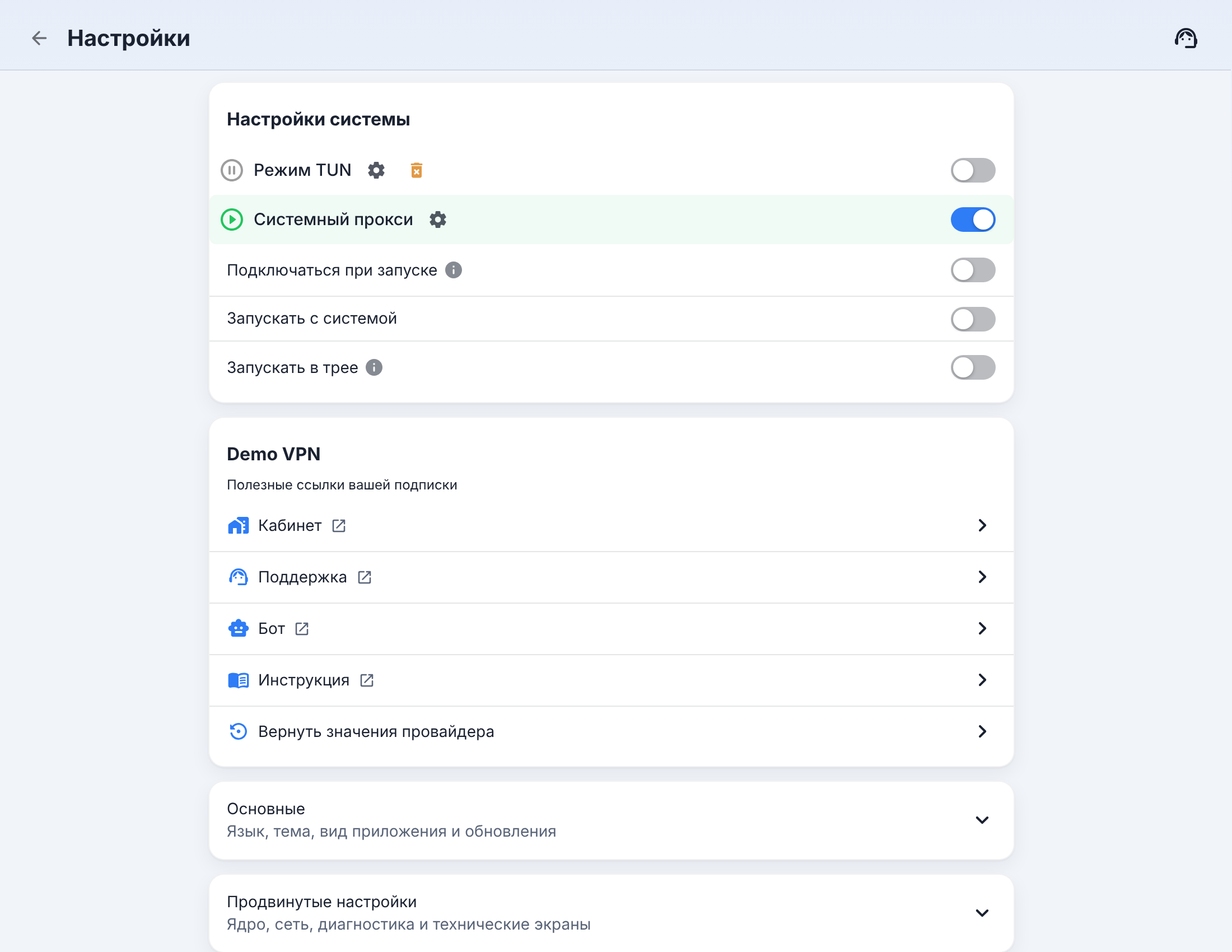
| Item | What it does |
|---|---|
| TUN Mode | captures the traffic of all programs. The gear — stack and routing; the wrench icon — install or repair the background service |
| System Proxy | proxy for browsers and most programs. The gear — address, PAC mode, Proxy Guard, bypass list |
| Connect on launch | turn on the connection right after the app starts |
| Start with the system | launch the app when you sign in to the system |
| Start in the tray | don't show the window on launch |
| Override system DNS | macOS only |
The checked TUN and system proxy switches are exactly what the connect button turns on. Details are in Connection.
Provider block
Named after the subscription: the links the provider sent — account, support, bot, status, guide. Only the ones that were sent are shown.
The last item is Restore provider values. It shows where your settings override what the subscription template sets: mode, log level and unified delay, port and LAN sharing, TUN settings, tunnels, this subscription's DNS override and your own rules, proxies, groups, Merge and Script edits. Checked groups are taken from the subscription again; groups marked "all subscriptions" change for every subscription at once. Your own template edits are deleted for good. When everything matches, pressing it shows "Everything matches the subscription". File subscriptions don't have this item.
General
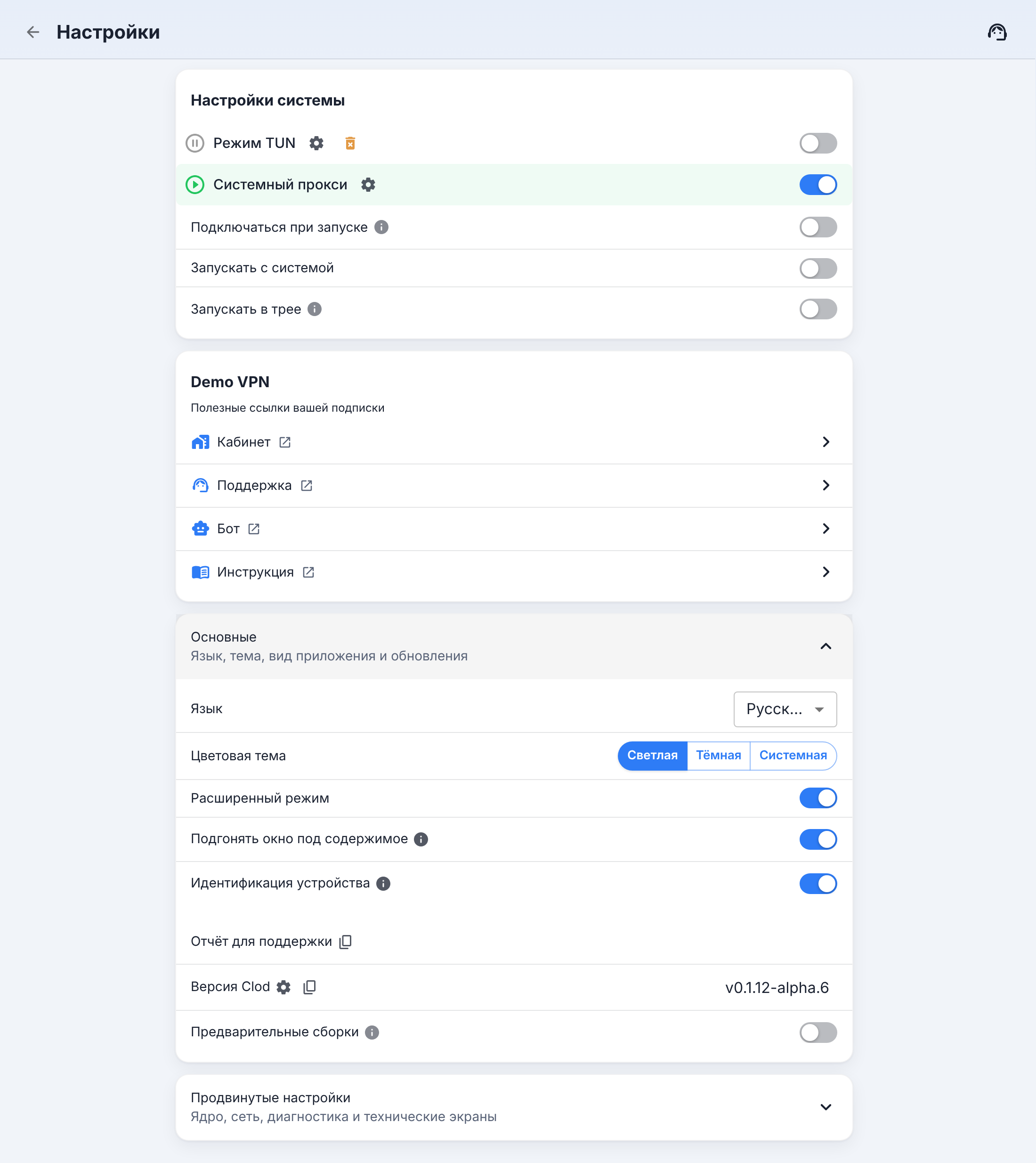
- Language and Theme Mode (Light, Dark, System).
- Advanced mode — the two-column home view, see Home screen.
- Fit window to content.
- Device identification — the identifier for the device limit; the tooltip shows exactly what is sent to the provider.
- Support report — the copy icon puts the report on the clipboard, see Support report.
- Clod Version — the gear checks for updates.
- Pre-release builds — receive alpha and beta versions, see Updates.
Advanced settings
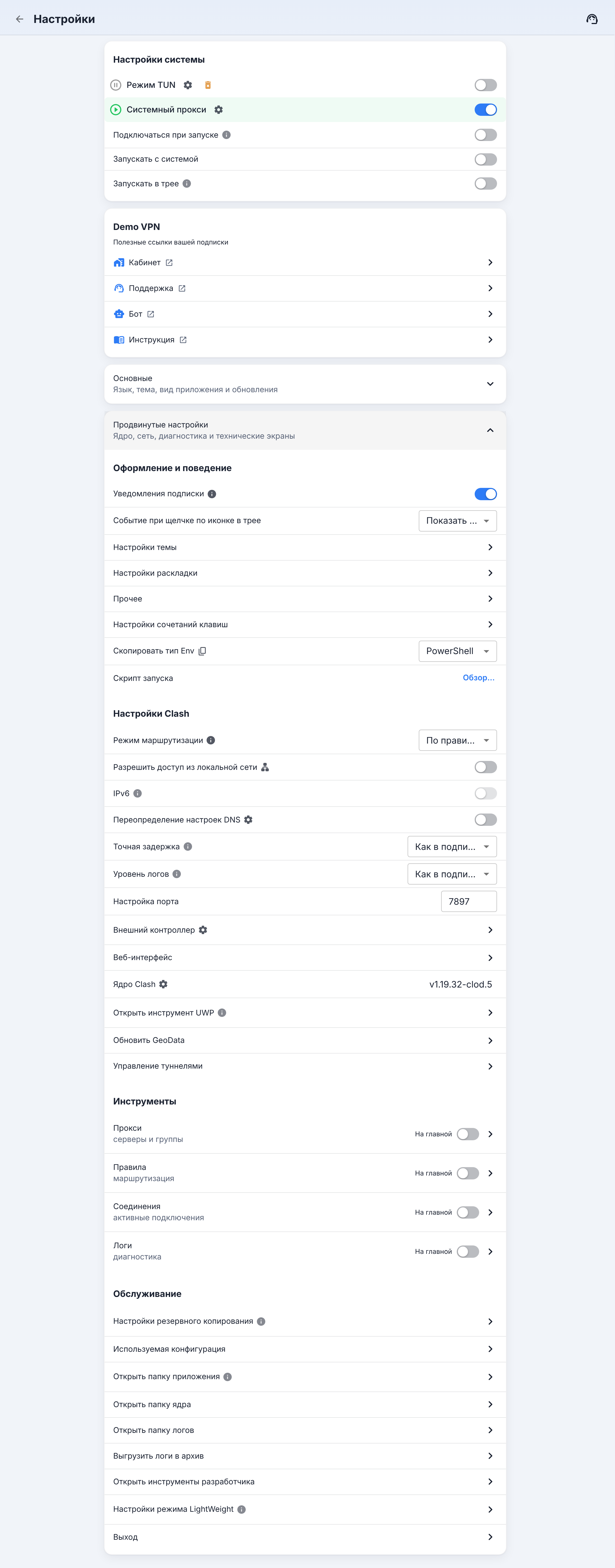
Appearance and behaviour
- Subscription notifications — reminders about the end of the term and traffic.
- Tray Click Event — what clicking the tray icon does (not on Linux).
- Theme Setting — colors, font, the provider's styling.
- Layout Setting — group icons, notification position, tray icons, speed in the tray (macOS only).
- Miscellaneous — app log, closing connections when switching servers, automatic update checks, latency test address and timeout.
- Hotkey Setting, Terminal proxy command, Startup Script.
Clash Setting
- Routing mode — Rule, Global, Direct.
- LAN sharing — share the proxy with other devices (for example, WSL, Docker, a phone on the same network).
- IPv6 — shows whether IPv6 is enabled in the subscription.
- DNS Overwrite — your own DNS on top of the subscription; only what you changed is stored.
- Unified Delay and Log Level — "As in the subscription" or your choice.
- Port Config — the proxy port (by default from the subscription, otherwise 7897).
- External Controller, Web UI.
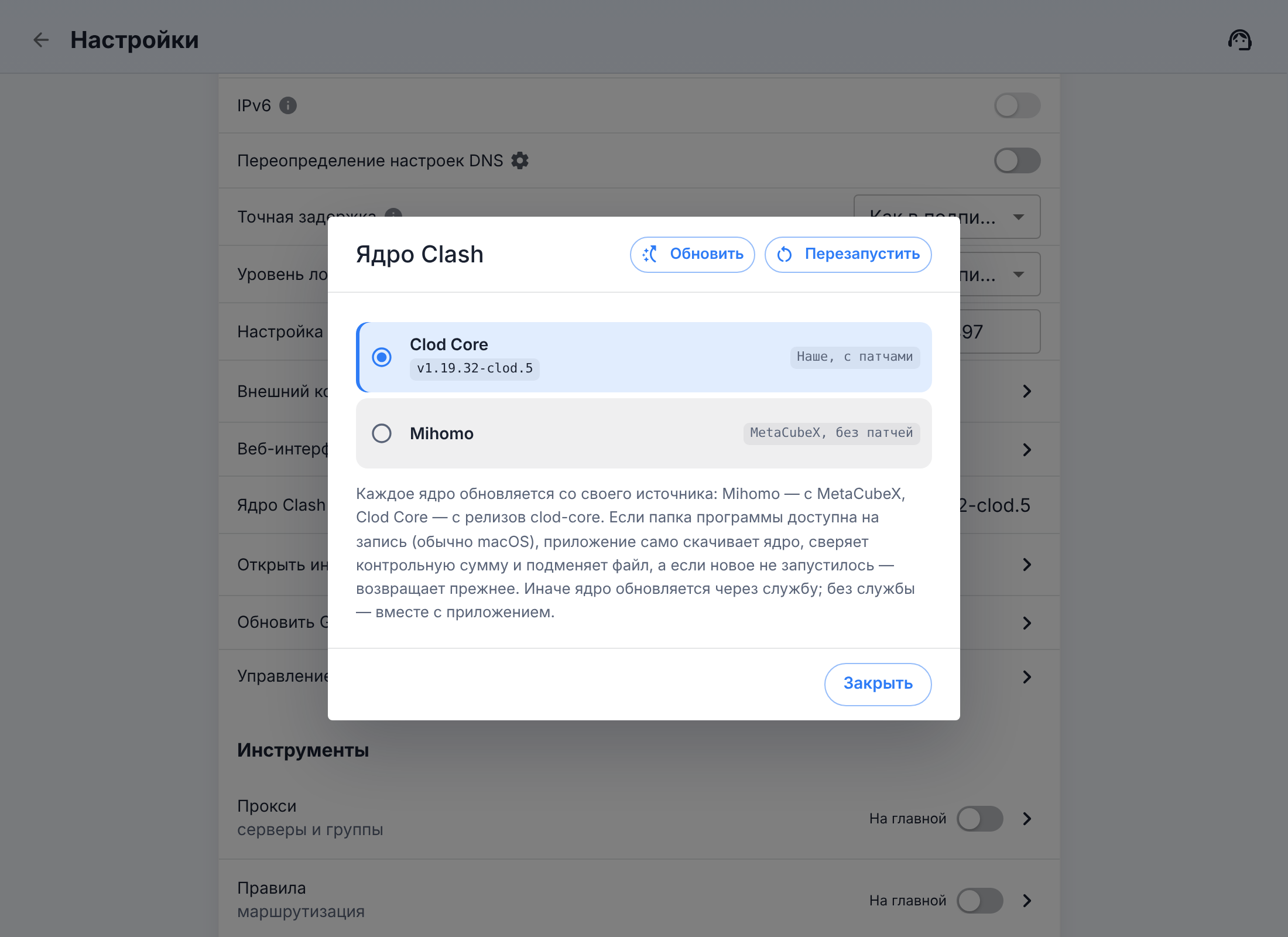
- Clash Core — choose the core (Clod Core or Mihomo), update and restart it, see Updates.
- Open UWP tool (Windows only), Update GeoData, Tunnel Management.
Tools
Proxies, Rules, Connections, Logs — technical screens. The On home switch puts a shortcut to the screen on the advanced-mode home screen. More about "Proxies" and "Connections" in Servers.
Maintenance
- Backup Setting — backups of settings and subscriptions on this computer: on a schedule or with a button, saved to a file and restored from one.
- Runtime Config and As the provider sent it — view the final core config and the provider's original response.
- Open Conf Dir, Open Core Dir, Open Logs Dir.
- Export logs as an archive — for support, see Support report.
- Lightweight mode settings, Dev Tools, Exit.