 Clod Clash
Home screen
Simple and advanced mode, what is shown where, the tray and hotkeys
Simple mode
The window is compact by default. Everything you need every day is on one screen.
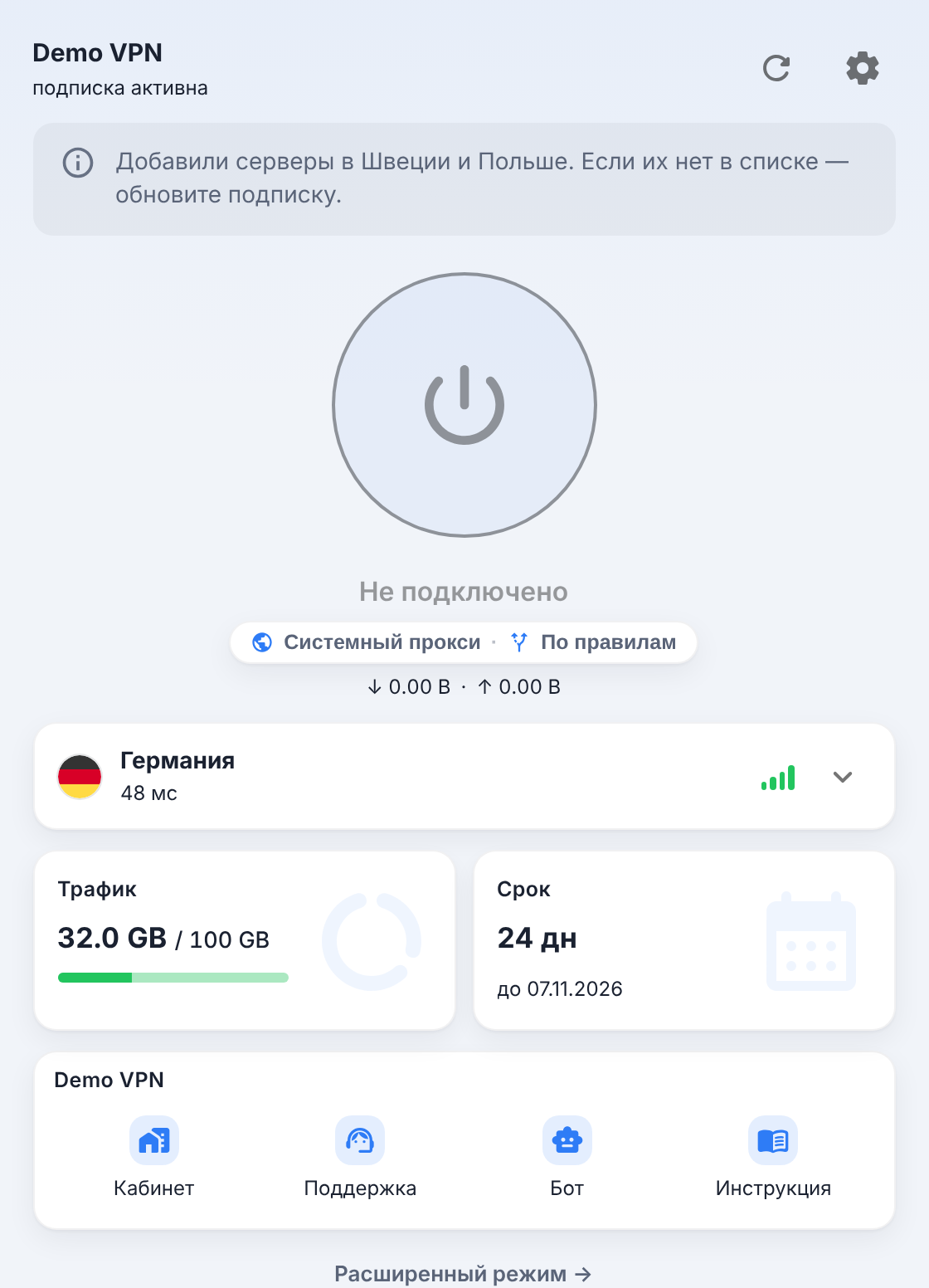
From top to bottom:
- Header — the subscription name and its state ("subscription active", "subscription expired"), on the right — subscription update ↻ and settings ⚙.
- Provider announcement — scheduled maintenance, new servers, promotions. A promo banner can be closed.
- Connect button and the state: "Disconnected", connecting, "Connected". While connected, a session timer runs on the button.
- Pill with the connection method and routing mode, for example "System proxy · Rule", and the session traffic. Tapping the pill opens the settings (unless the provider has locked the mode; then it shows a tooltip about the lock).
- Server — flag, name and latency; tapping it opens the server list.
- Traffic and Expires — what's left according to the subscription.
- Provider block — buttons from the subscription: "Account", "Support", "Bot", "Status", "Guide" (only the ones that were sent).
- Advanced mode → — switch to the advanced view.
Warning lines with a reason and a button may appear under the connect button: TUN didn't start, the core is not running, the firewall is blocking traffic, and so on. What they mean is covered in Common errors.
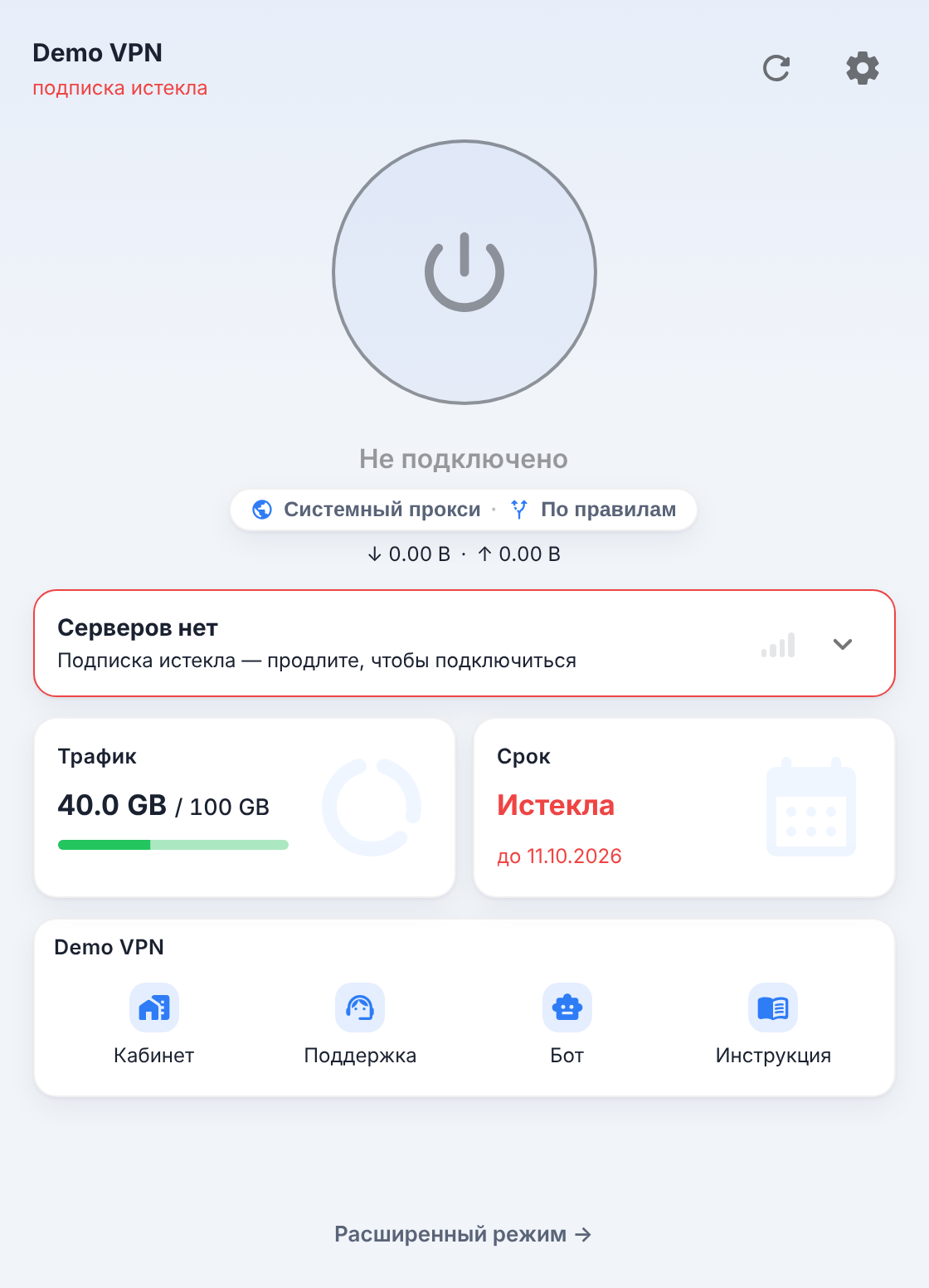
If there are no servers
When the provider doesn't hand out servers (the subscription expired, traffic ran out, device limit, the provider did not recognise the device), a "No servers" card with the reason in words appears instead of the server. If the provider did not recognise the device because identification is off, an Enable button is next to it.
Advanced mode
The Advanced mode → link expands the window to two columns: on the left the button, the server and Quick actions (system proxy, TUN, connect on launch, start with the system, start in the tray), on the right the traffic and expiry cards, Network (speed and volume for the session) and tool tiles. The same is available at Settings → General → Advanced mode. The provider can suggest advanced mode by default, but your choice takes priority.
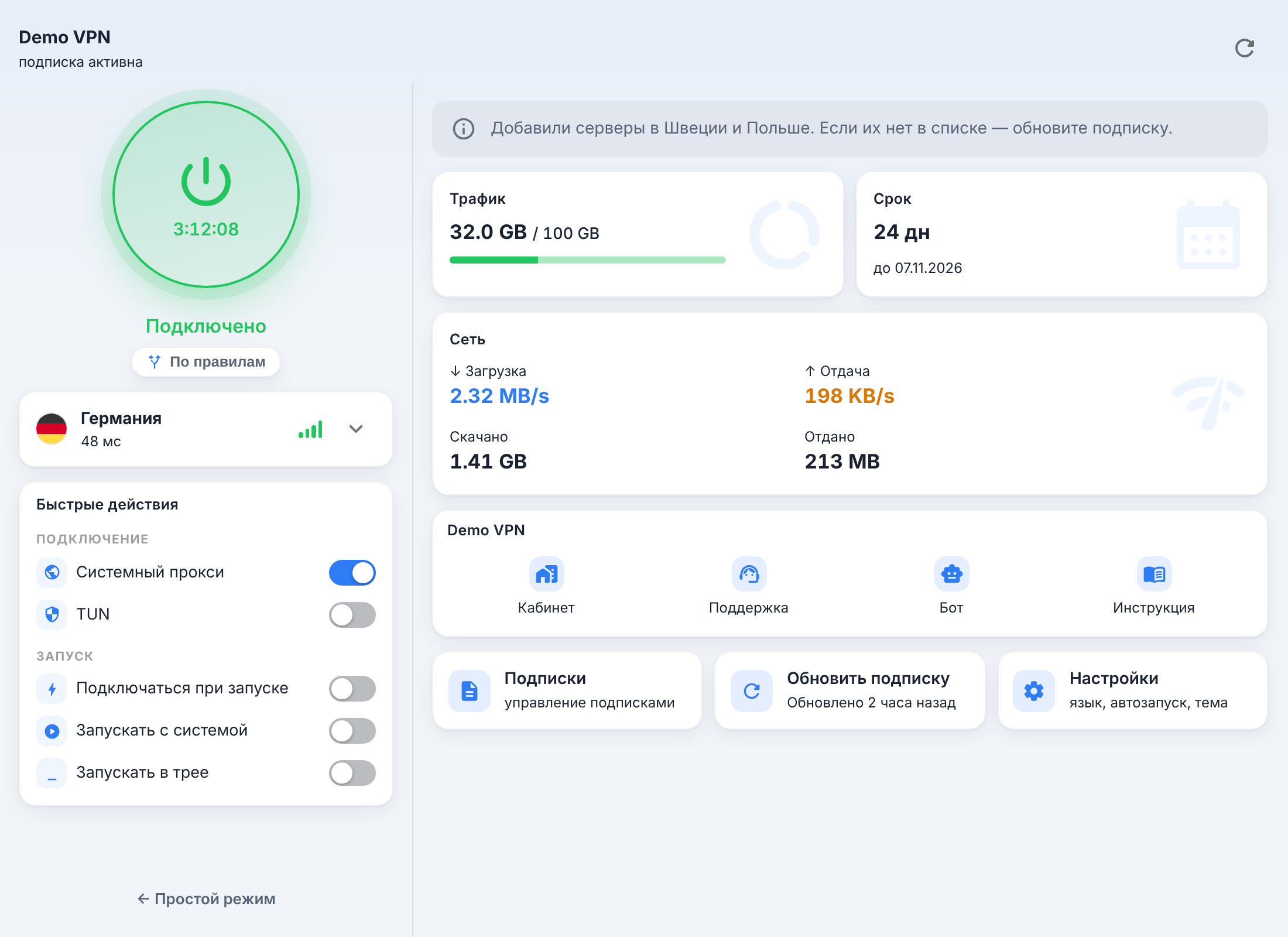
The tiles at the bottom are Subscriptions, Refresh subscription, Settings and shortcuts to the screens you've put on the home screen (the "On home" switch next to "Proxies", "Rules", "Connections" and "Logs" in Advanced settings → Tools).
Dark theme
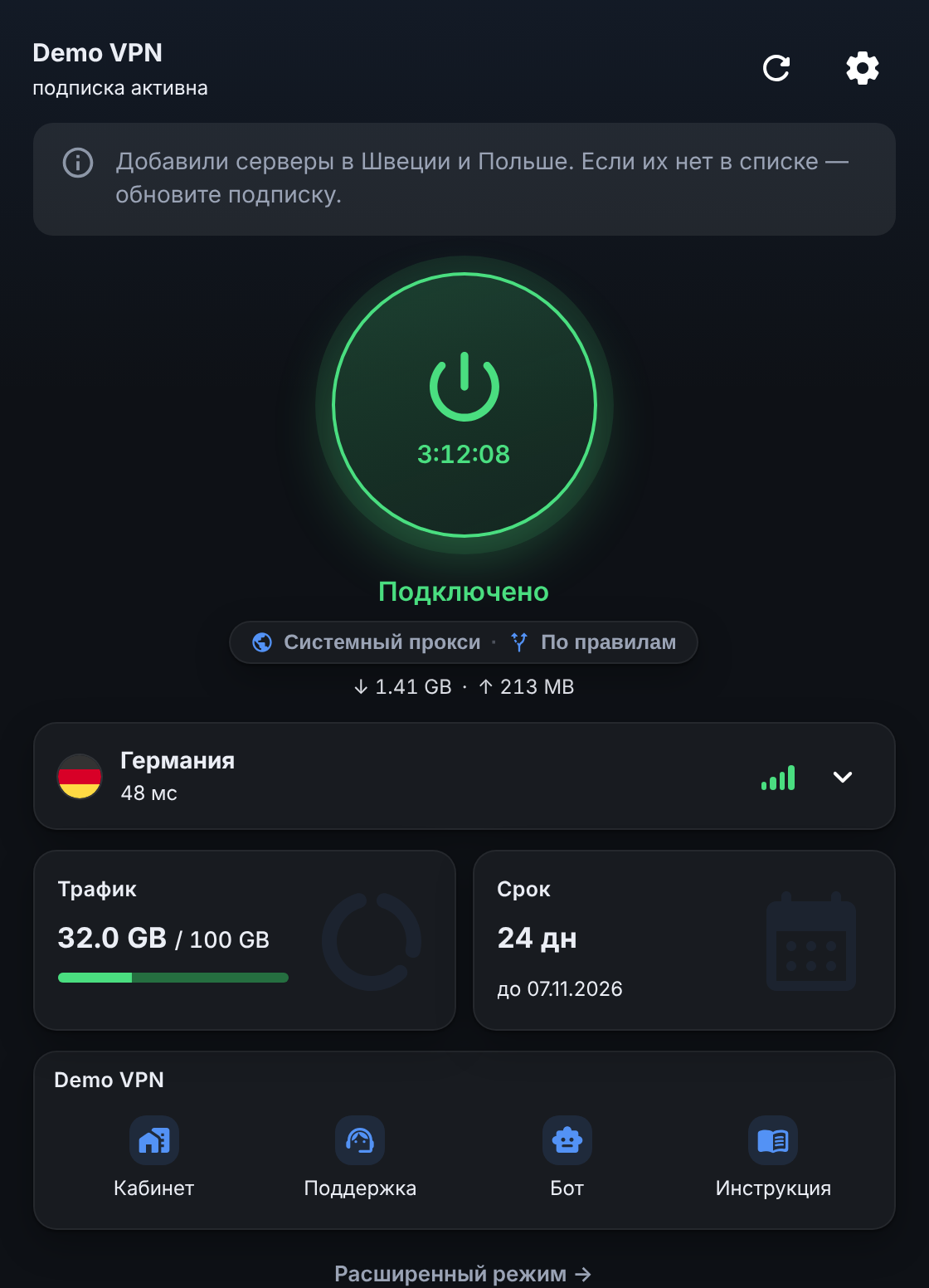
The theme is switched in Settings → General → Theme Mode: Light, Dark or System. The window height adjusts to its content; if you resize it by hand, the app remembers your size, and you can bring back auto-fit with the Fit window to content switch in the same place. A height the system layout gave the window (Snap on Windows, macOS tiling) is kept until the content changes.
Tray
The tray icon changes with the state: it looks different when off, with the system proxy and with TUN (monochrome on macOS by default). The menu has "Open window", the routing mode ("Mode: …", unless the provider has locked it), subscription switching ("Subscriptions"), server selection by group, "System Proxy", "TUN Mode", "Lightweight mode", "Open Directory", "More" (including "Restart Core") and "Exit".
Closing the window with the cross minimizes the app to the tray; Exit in the tray menu quits it and removes the system proxy.
Hotkeys
Global shortcuts are assigned in Advanced settings → Appearance and behaviour → Hotkey Setting: show or hide the window, system proxy, TUN, each of the three modes, lightweight mode, "Reapply Subscription".