 Clod Clash
Adding a subscription
Where to get the link, how to add a subscription, set up its updates and what the card states mean
Where to get the link
The subscription link comes from your provider — usually in your account dashboard, a Telegram bot or an email after payment. It looks like this:
https://sub.example.com/a1b2c3d4Only https:// addresses are accepted — otherwise the subscription address would travel over the
network in plain text.
The link is a key
Anyone with the link can use your subscription. Don't publish it or forward it to strangers.
The first subscription
On first launch the home screen shows the "Add your subscription" field. Paste the link and press Add.
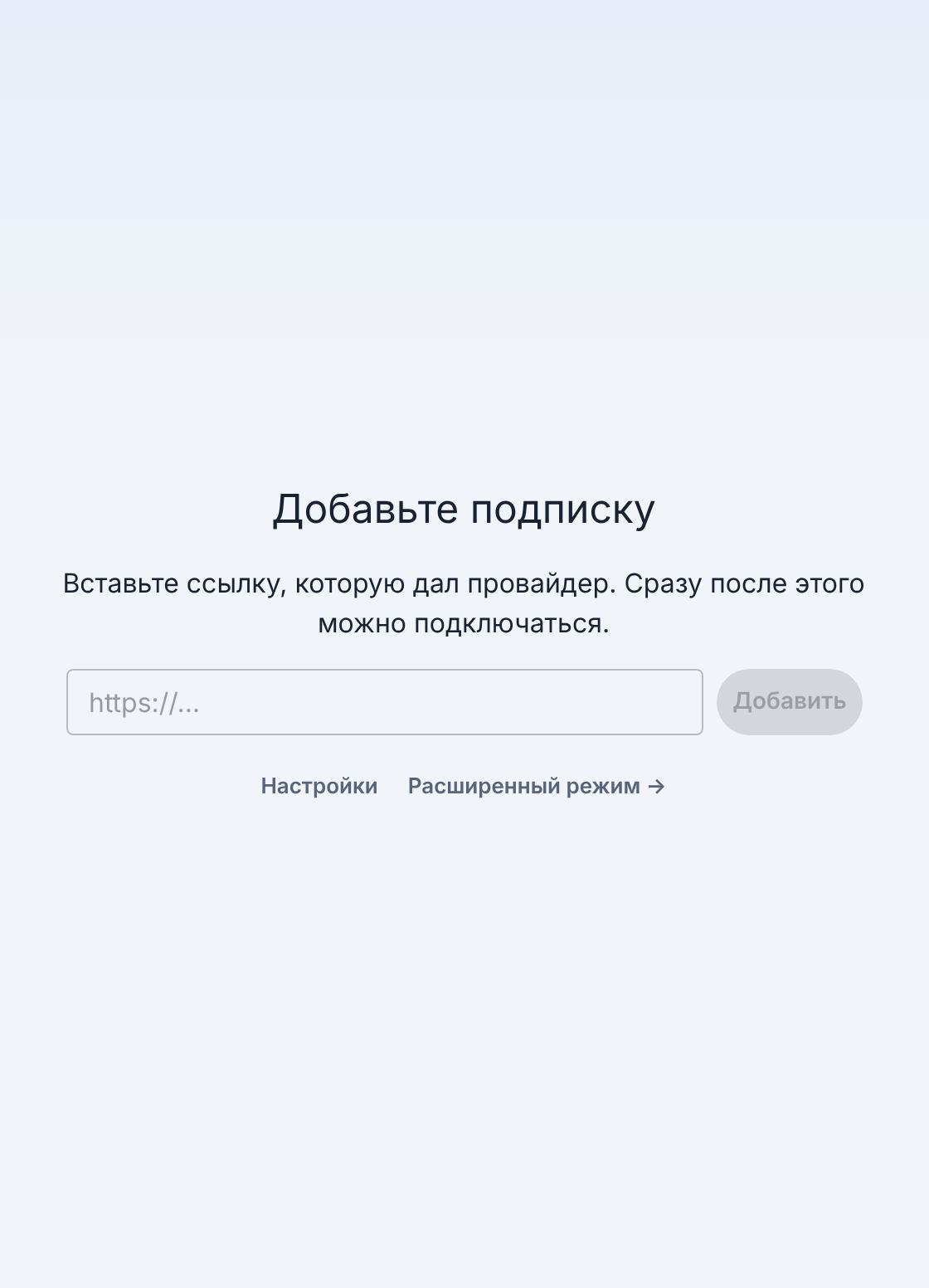
The app first checks whether the provider supports the secure connection and shows on screen what is happening, then downloads the subscription. The name, expiry date, traffic and server list come with the link — there's nothing else to enter. You can connect right after that.
Another subscription
Further subscriptions are added in advanced mode: the Subscriptions tile → Add subscription. Paste the link into the Subscription URL field and press Add.
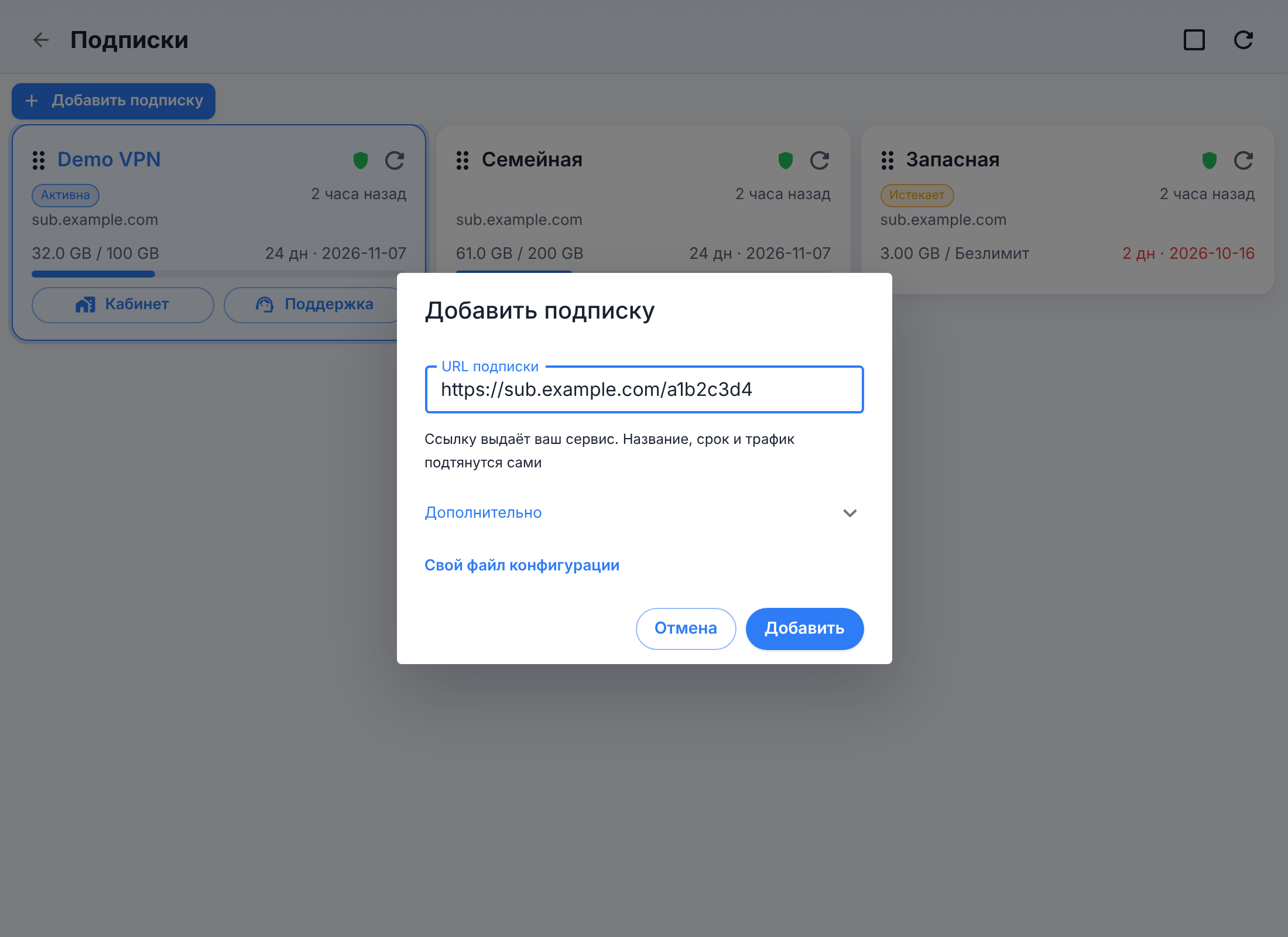
You only need the Advanced block if you want to override something: your own name, group, update interval, User-Agent. Your own config file adds a subscription from a file on your computer instead of a link.
Invitation link
If your provider gave you a link like clash://install-config?url=https://… or
clodclash://install-config?url=https://…, just open it — the app picks up the subscription by
itself, even when minimized to the tray. The address inside the link must also be https://.
Secure connection
This is not ordinary HTTPS (which is always used) but additional encryption of the exchange with the provider on top of it: the subscription address, device data and the server list travel to the provider encrypted, and intermediaries along the way (CDNs, proxies) can't see them. It works if the provider supports it.
There's no switch when adding — the app decides everything by itself:
- the provider supports it — the subscription is added with it;
- it doesn't — the app downloads the subscription the usual way and says it was added without the secure connection;
- the server doesn't respond — the app retries with the secure connection, three times in total, and if there's still no answer, it shows "The provider's server is not responding"; the subscription is not added.
In the subscription properties you can turn the secure connection off — the app will warn that this is unsafe — and turn it back on: when turning it on, the app first checks whether the provider responds, and if it doesn't, the secure connection stays off.
Several subscriptions
You can have as many subscriptions as you like; only one is in use — the one with a frame around it. To switch, tap another card on the Subscriptions screen.
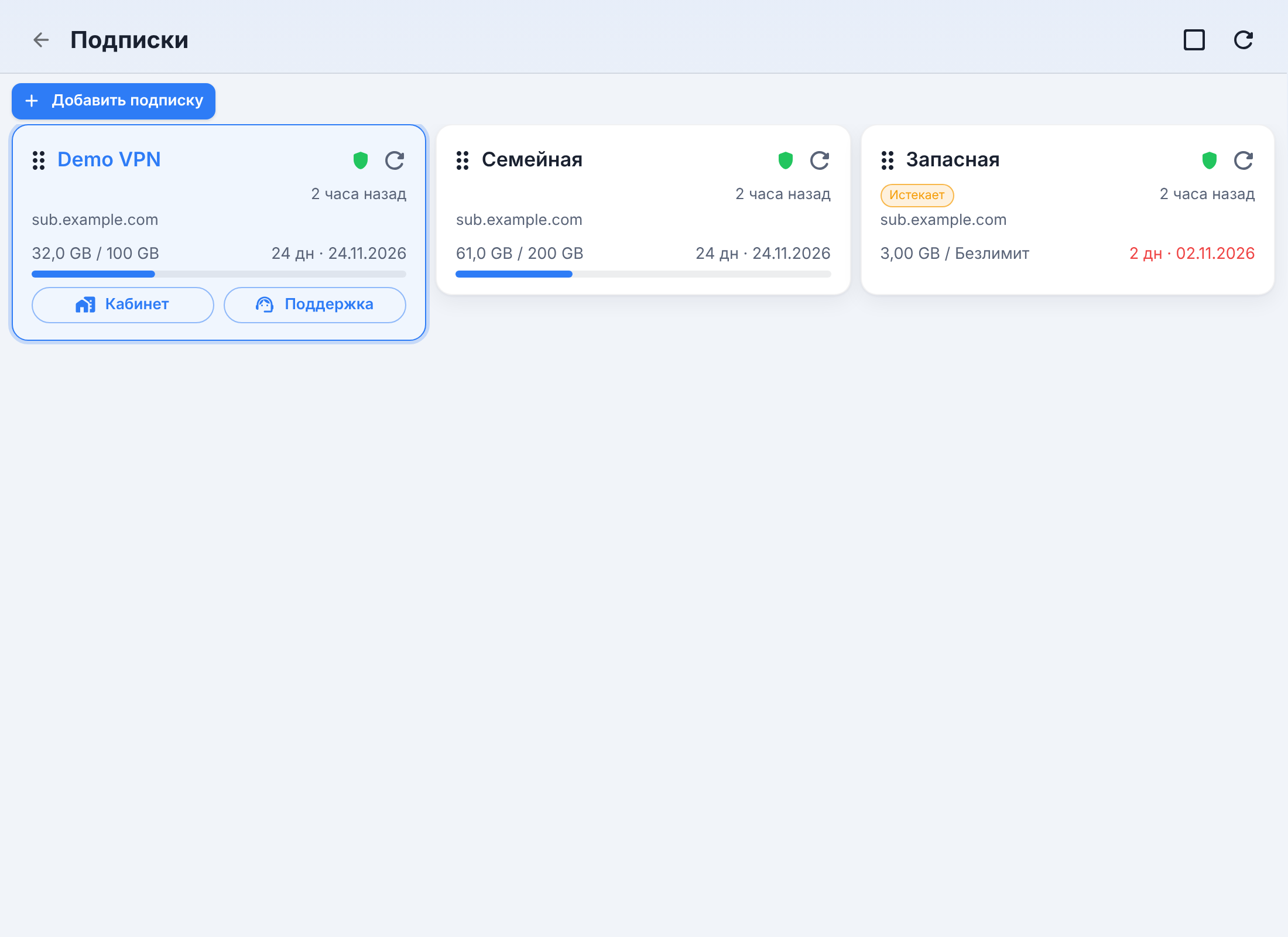
The card shows the subscription's domain, when it was updated, traffic usage and how many days are left. Badges:
| Badge | What it means |
|---|---|
| Expiring (yellow) | 3 days or fewer left until the end of the term |
| Expired (red) | the term is over; an inactive card is dimmed |
| Out of traffic (red) | the term is still valid, but the limit is used up |
| not applied | the subscription was downloaded, but the core didn't accept it — the previous config is in use |
If an auto-update fails, the card shows "Not updated · updated …", and if it fails several times in a row — an "Update the subscription" frame.
Subscription menu
Right-clicking a card opens the menu.
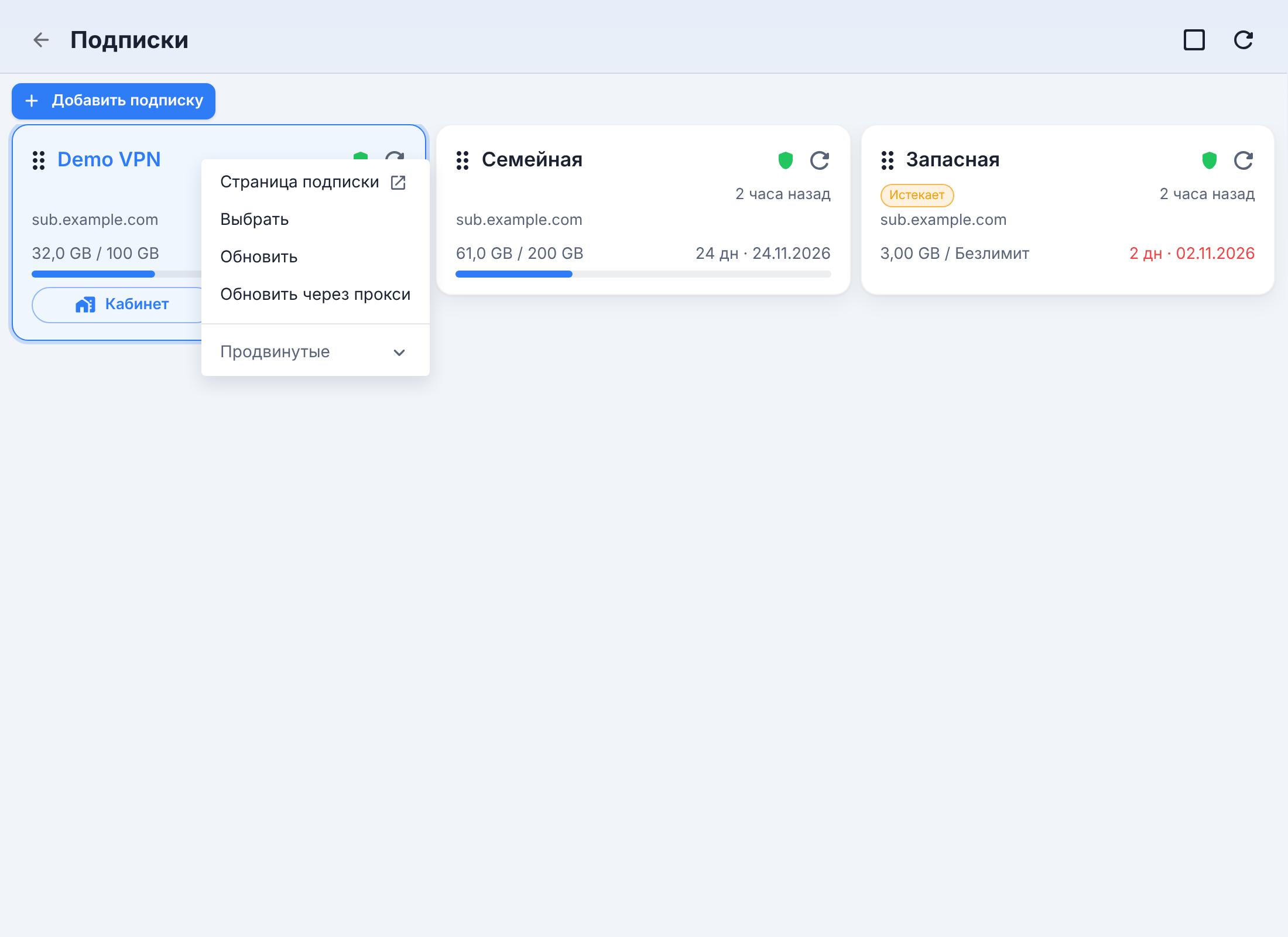
- Subscription page — the provider's page, if it sent one;
- Select — make this the subscription in use;
- Update and Update via proxy — download the subscription again;
- Advanced — Edit subscription, Edit File, Edit Rules, Edit Proxies and Edit Proxy Groups, Open File, Delete.
Subscription properties
Advanced → Edit subscription.
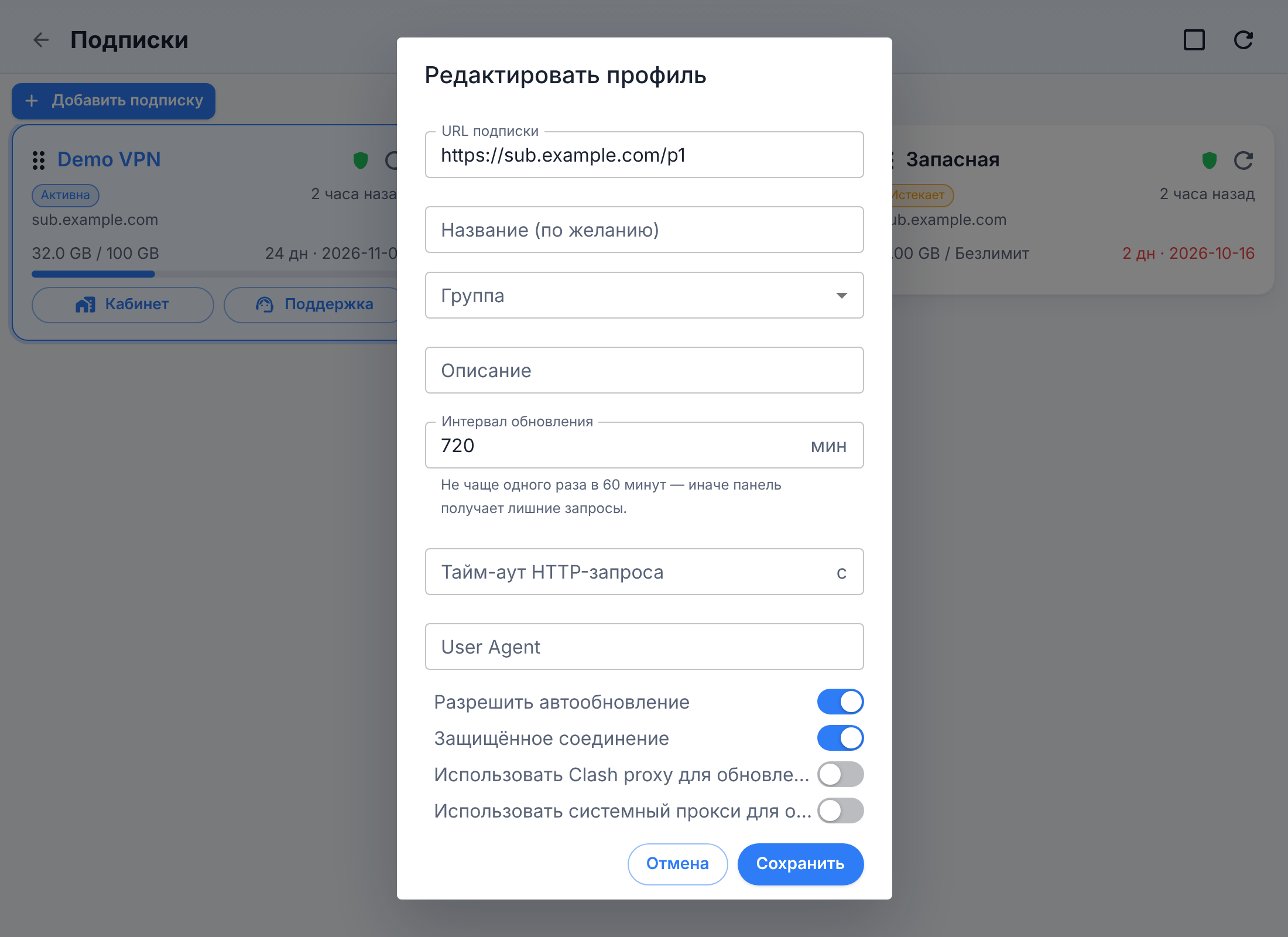
- Name (optional) — your own name for the subscription. It's stored separately from the name the provider sends and isn't overwritten by updates; it's shown as "Yours (Name from the provider)".
- Group — for convenience: a row of group filters appears above the cards. It doesn't affect how anything works.
- Update Interval — in minutes, no less than 60. If the provider sent an interval when the subscription was added, the field is locked.
- Allow Auto Update, Secure connection, updating through a proxy, User-Agent and the request timeout.
If you changed the subscription address (for example, reissued the link), the selected mode and servers are kept.
Updating the subscription
The subscription is updated at the interval the provider sends — a new value is applied with every update until you set your own. A missed update runs at launch; the timer keeps running even when the window is closed.
Without an interval the subscription is updated manually — and also on its own, a minute and a half after the term ends, to show the renewal or the "expired" state right away (unchecking "Allow Auto Update" prevents this).
Manually:
- the ↻ button next to the subscription name on the home screen;
- in advanced mode — the Refresh subscription tile (its tooltip shows when the last update happened);
- the ↻ button on a card on the Subscriptions screen, or the ↻ "Update all subscriptions" button in its header.
After a manual update you can repeat it in half a minute.
If the provider's domain is blocked, the download goes down a ladder: directly → through the app's own tunnel → through the system proxy. So you can update the subscription even when the provider's website doesn't open.
A failed update doesn't take away a working subscription: if the provider responded with something other than a config or the core didn't accept it, the previous file stays, the card is marked "not applied", and the reason is shown in a notification. Updating the subscription doesn't drop live connections or reset the selected server.
Traffic and expiry
The Traffic and Expires cards on the home screen get their data from the provider on every update. The last day of the term is shown in hours, an unlimited plan in words. Usage between updates is calculated locally and marked as approximate.
The app reminds you about the end of the term 7, 3 and 1 day ahead and about traffic usage at 80, 90 and 100% — the provider can set its own thresholds. All of them are turned off at once in Settings → Advanced settings → Appearance and behaviour → Subscription notifications.
Backup address
Along with the subscription, the provider can send a backup address — the same subscription on a different domain. It's tried only if no usable subscription could be fetched from the main address by any route (directly, through the core, through the system proxy), and it doesn't change the saved link. If the provider moves everyone to the backup address, the app first checks that it really serves the subscription, then replaces the link and lets you know.
Device limit
If your plan has a device limit, the provider recognizes the computer by its device identifier. It's derived from the system's machine ID, hashed, and doesn't change between app updates; the machine ID itself and the computer name are never sent anywhere (more in Support report).
When the limit is reached, the app shows a "Device limit reached" window with the subscription name and a Support button — both when adding such a subscription and on every update of it. With such a response, the subscription's previous servers are removed, and the card shows the line "Not updating: device limit reached". After a renewal or once a slot is freed, the very next update brings the servers back.
You can turn off sending the identifier in Settings → General → Device identification — but a provider with a device limit will then refuse, and the app will offer to turn identification back on.