 Clod Clash
Servers
How to choose a server, check latency, mark favorites and what happens to connections when you switch servers
Choosing a server on the home screen
The card under the connect button shows the current server, its flag and latency. Tap it — the list opens.
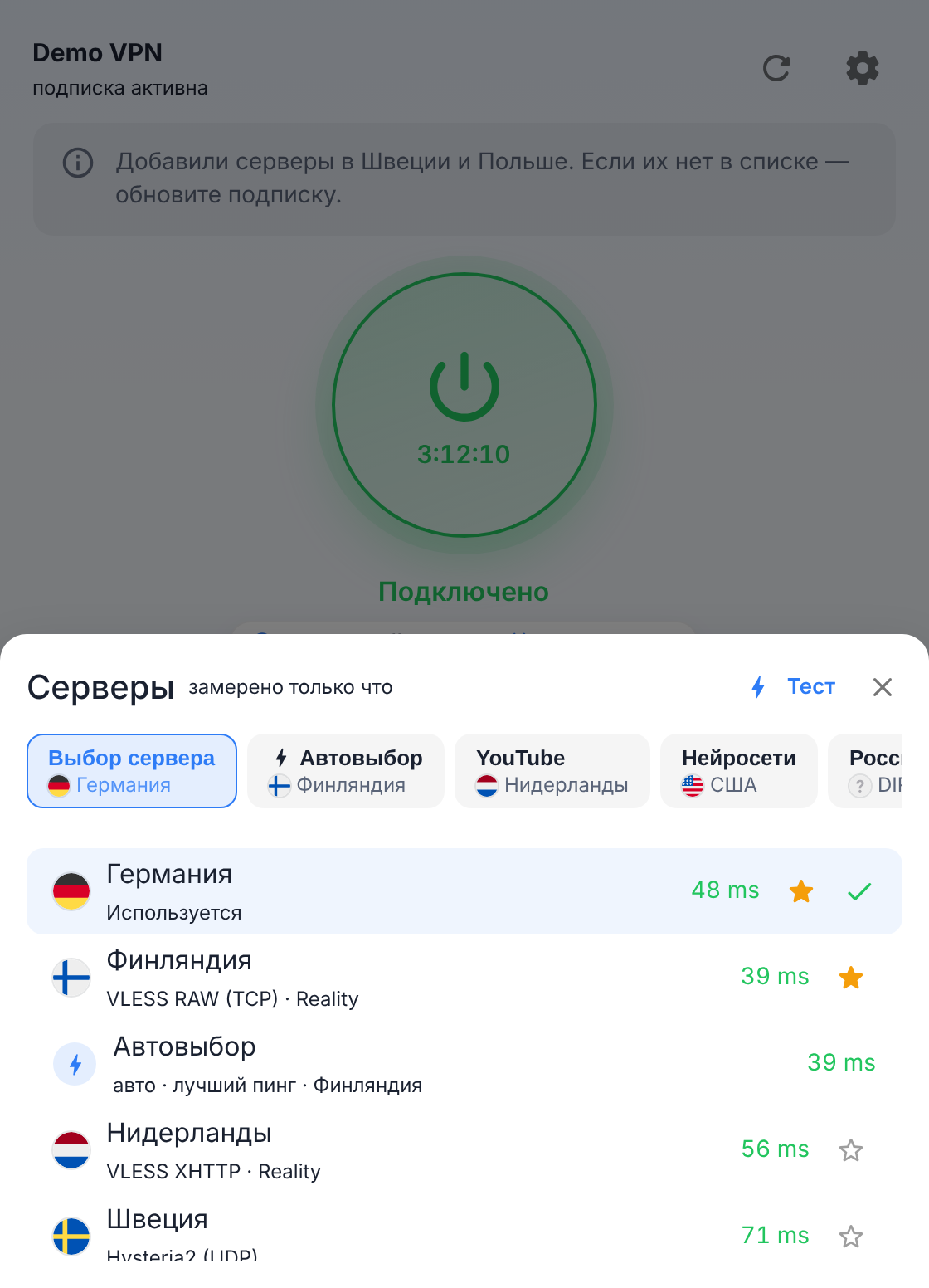
- Tabs at the top are the groups from the subscription; under the name is the server currently selected in the group. Automatic selection groups have a lightning icon and a caption like "auto · best ping": the core itself keeps the fastest server and switches if it goes down. In "auto · best ping" and "auto · failover" groups you can pin a server right here with a tap; only "load balancing" and "smart pick" groups can't be picked by hand — they show the hint "The node in this group is picked automatically".
- Tapping a server selects it. The selected one is marked "In use" and with a check mark.
- Under the server name are the protocol, transport and security (for example, "VLESS · RAW (TCP) · Reality"), unless the provider has hidden them.
- The star adds a server to favorites — those float to the top of the list.
- The server selection survives subscription updates and app restarts.
- In the "Global" mode the GLOBAL group decides the traffic: the card and the list show its choice, like the tray and "Proxies". In the "Direct" mode no servers are used: the card says "Direct", the list does not open, and the tray has no groups.
Latency
The Test button measures the latency of the servers in the open group; the selected server is not reset. Next to it is shown when the last measurement was taken.
| Color | What it means |
|---|---|
| green | faster than 200 ms |
| yellow | 200–399 ms |
| red | 400 ms and slower |
| dash | not measured yet |
| "Timeout" | the server didn't respond |
The color thresholds can be changed by the provider. The provider can also show bars, a dot or a check mark instead of numbers.
While the window is on screen and the connection is on, the selected server's latency updates by itself. With the connection off, the home screen doesn't measure on its own — only via the button.
The snowflake icon
A snowflake next to the latency means the server failed an automatic check: there's a suspicion that access to it is being throttled from this network (the download breaks off after the first few kilobytes). You can use the server, but first check that the connection is stable, and if it keeps dropping, report it to your provider's support. The check is turned on by the provider; on another network the server may work.
The "Proxies" page
All groups and servers in full are on the Proxies page (Settings → Advanced settings → Tools → Proxies; the "On home" switch puts its shortcut on the home screen).
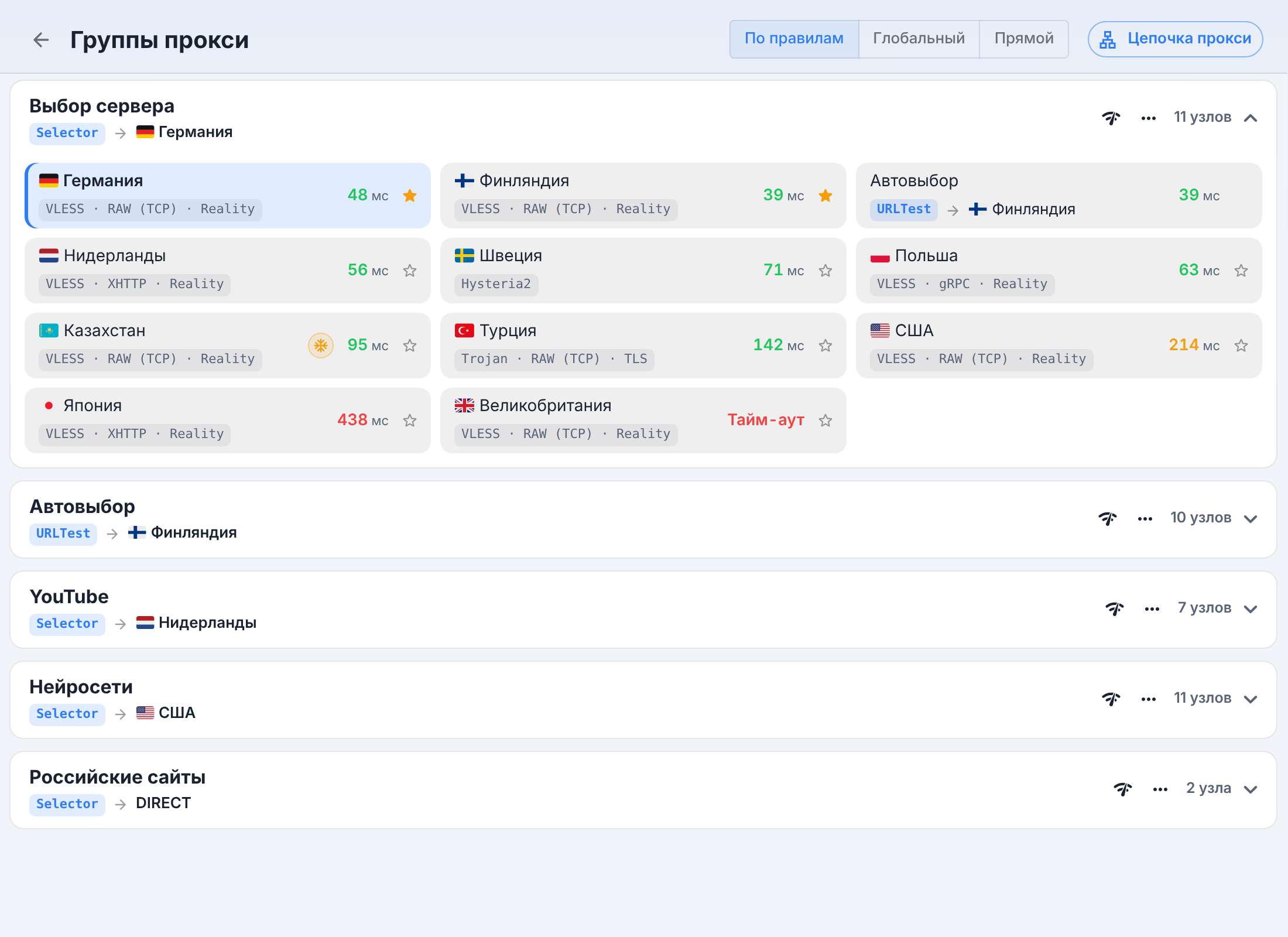
- At the top is the mode switch: Rule, Global, Direct.
- Tapping a group expands its servers as tiles. Here you can pick a server even in an automatic selection group — it will be used while it passes the checks (if it goes down, the group temporarily takes the fastest one) or until you pick another one.
- The check icon on a group measures its latency; everything else is in the … menu ("More").
- The provider's server description is shown on a separate line; "Less node details" hides it along with the types.
Switched server, but a download keeps using the old one
New connections always go through the selected server. Already open ones depend on where you switched the server from:
- The "Proxies" page and the tray menu — the app closes connections whose chain goes through the previous server, and only those. A download or a call will drop and reconnect through the new server.
- The home screen — by default connections aren't closed: a download already in progress finishes through the previous server while it's alive. This way flipping through servers on the home screen doesn't break your work on every tap.
To have everything move over right away from the home screen too, turn on Close connections on Home server switch (off by default). This switch and the main one, Auto Close Connections (on by default), are in Settings → Advanced settings → Appearance and behaviour → Miscellaneous. If the main one is off, connections are not closed anywhere.
Connections
The Connections page (also under "Tools") shows which programs and sites are currently going through the VPN, through which server and by which rule.
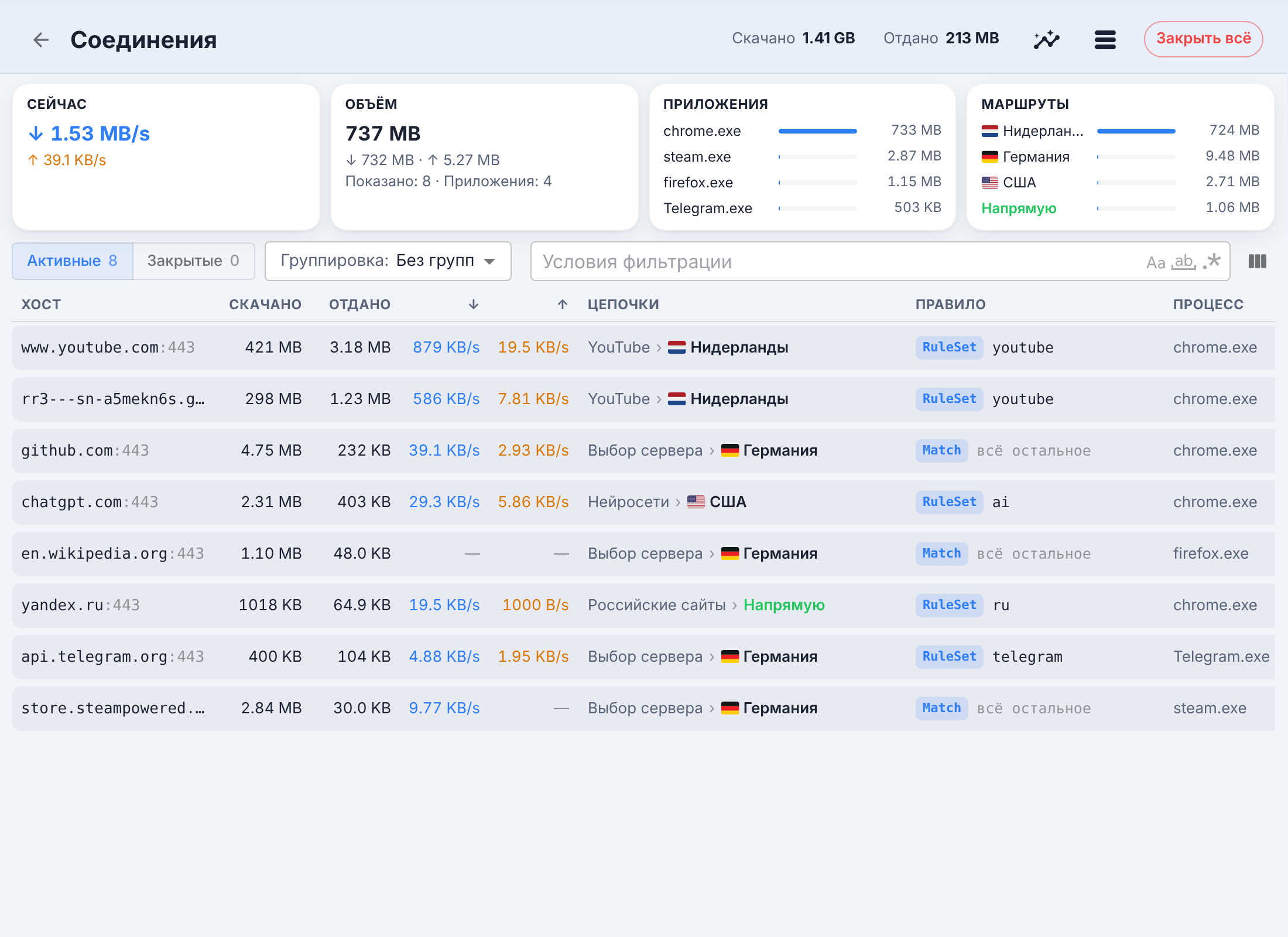
At the top are the speed, volume, top apps and nodes (the summary can be hidden). The list can be grouped by apps, nodes or rules and filtered. Close All drops all connections at once; connection details open when you tap a row.