 Clod Clash
Basic setup
What to set up after adding a subscription: connection method, start with the system, window view, theme and language
Once a subscription is added, the app is ready to go. Still, a few settings are worth checking right away.
What the connect button turns on
The connect button turns on whatever is checked in Settings → System Setting (in advanced mode — in "Quick actions" on the home screen):
- System Proxy — the default. Browsers and most programs go through it. Administrator rights are not needed.
- TUN Mode — captures the traffic of all programs, including those that ignore the system proxy (games, some messengers, the console). Requires the background service.
You can turn on both. The difference is explained in detail in Connection.
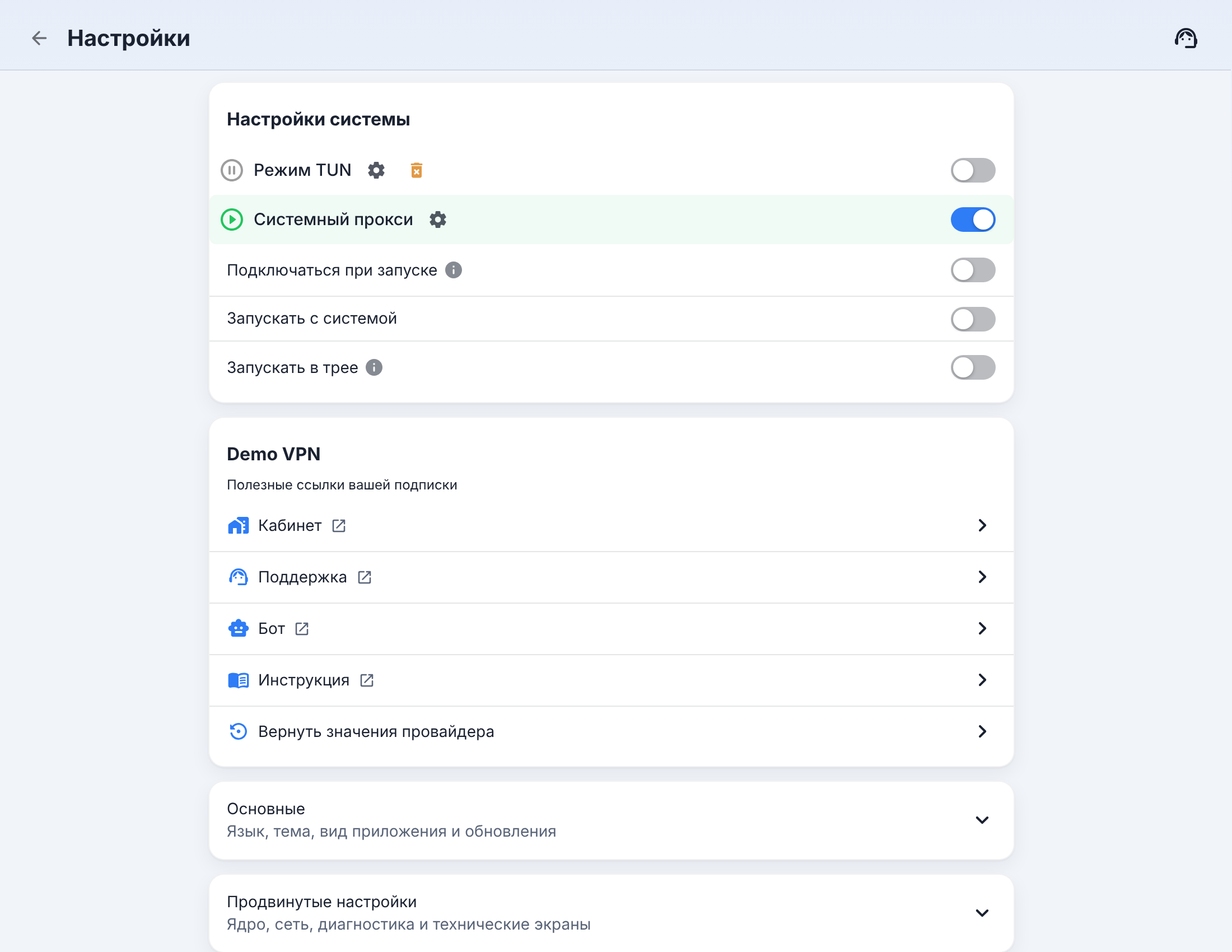
If the provider has fixed the connection method, Quick actions show "… — the connection method is set by your provider", and in the settings the remaining switch says "Set by your provider".
Starting with the computer
Three switches in Settings → System Setting, all off by default:
- Connect on launch — turn the connection on as soon as the app has started;
- Start with the system — launch the app when you sign in to the system;
- Start in the tray — don't show the window on launch, only the tray icon.
Together they give you "turn on the computer — the VPN is already running in the tray".
Simple or advanced mode
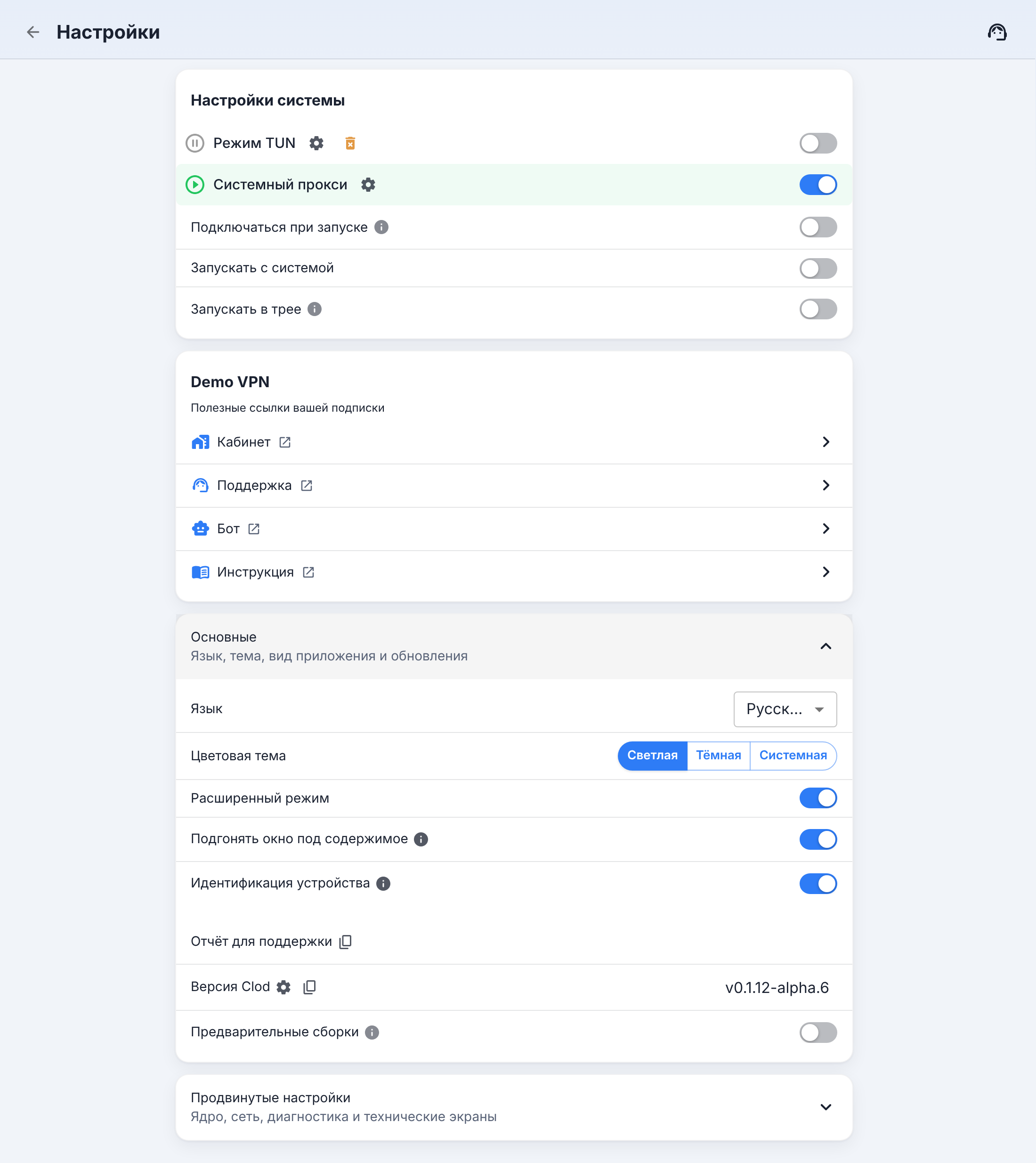
The window is compact by default: the button, the server, traffic and expiry, the provider's links. The Advanced mode → link at the bottom of the home screen expands the window to two columns with quick actions, network info and tool tiles. The same is available at Settings → General → Advanced mode. What's where is covered in Home screen.
Theme and language
Settings → General:
- Language — Russian, English and 11 more languages;
- Theme Mode — Light, Dark or System;
- Fit window to content — the window height adjusts itself; if you resize it by hand, the app remembers your size.
Colors, font and the provider's styling are in Advanced settings → Appearance and behaviour → Theme Setting.
Device identification
Settings → General → Device identification (on by default). Many providers limit the number of devices per subscription and count them by this identifier. The identifier is hashed: the machine ID itself and the computer name are never sent anywhere. If you turn it off, a provider with a device limit may refuse service — the app will offer to turn identification back on.
Subscription notifications
Reminders about the end of the subscription term and traffic are on by default. Turn them off in Settings → Advanced settings → Appearance and behaviour → Subscription notifications.