 Clod Clash
Updates
How the app updates itself, what pre-releases are and notifications about new versions
The app updates itself, from inside — no need to visit the site. The core is built into the app and updated together with it; there is no separate button for it.
How an update goes
The app finds a new version and shows the Update … is available dialog with the file size and the list of changes.
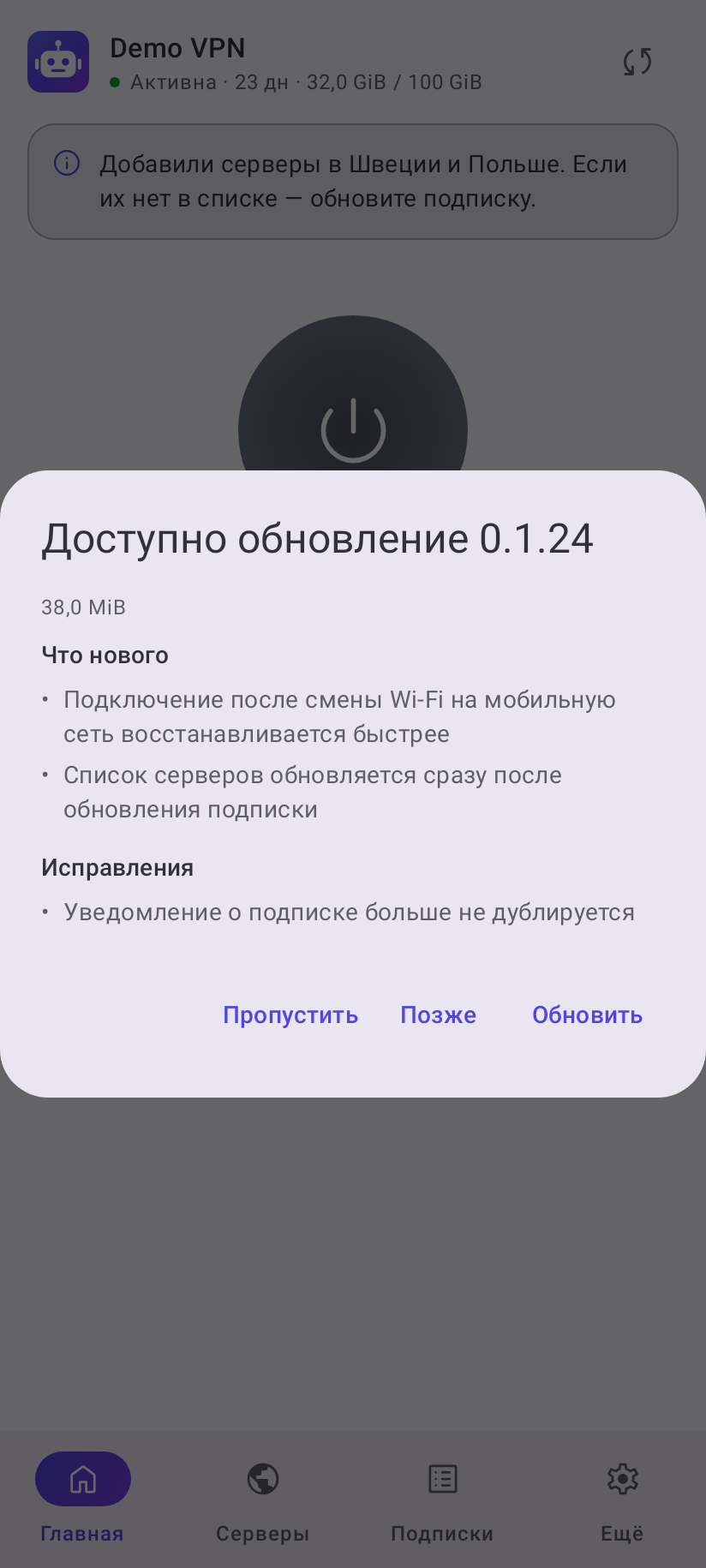
Tap Update. The app downloads the new version and checks its signature.
The first time, Android asks to allow the app to install other apps — the app explains this and opens the right system screen. Turn the switch on there and go back.
Confirm the installation in the system dialog. Subscriptions and settings stay. If the tunnel was on and Start after reboot is on, it comes back by itself.
Dialog buttons:
- Later — close the dialog; the app reminds you at the next check.
- Skip — do not offer this version; the app tells you about the next one as usual.
- Cancel — stop the download while it runs.
When the app checks for updates
- By itself — at most once a day, when you open the app or connect. Turned off in More → About → Check automatically.
- By hand — More → About → Check for updates. If there is nothing new, the app says “You are on the latest version”.
- In the background — even with the app closed, every few hours it checks for a new version and sends a “Version … is available” notification with an Update button. Tapping it opens the app and the update dialog. The notification itself downloads nothing; it comes once per version and never for a skipped version. With “Check automatically” turned off there is no background check either — the app does not go online by itself.
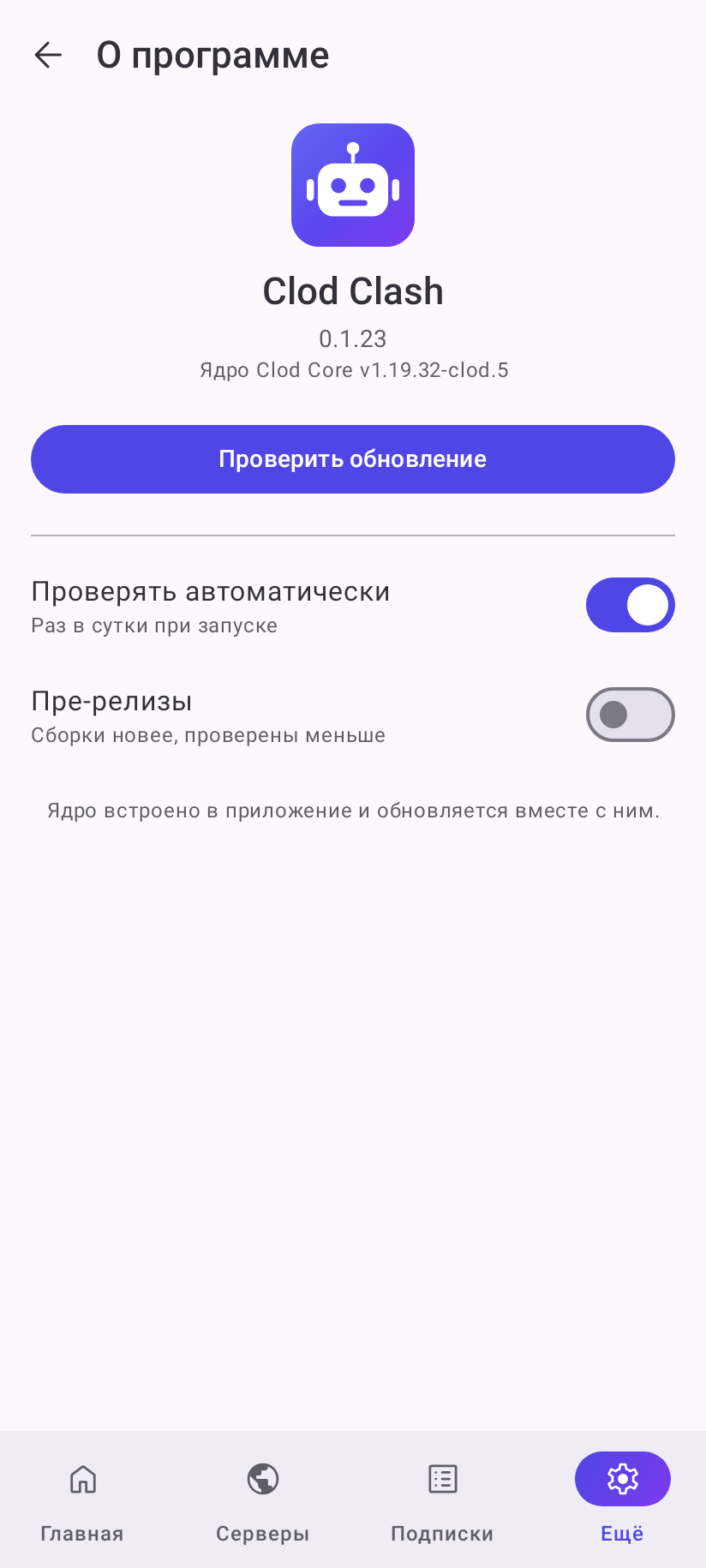
Background notifications are turned off in More → Look and behavior → Update notifications. While “Check automatically” is off, this switch is grey: there is no check, so nothing to notify about. The app warns that you may miss important fixes — then check for updates yourself in About.
Pre-releases
More → About → Pre-releases (off by default). Pre-releases are test versions with a suffix in the
number, for example 0.1.23-alpha.9: new features and fixes show up there earlier, but they are
tested less. With the switch on, the app offers both regular and test versions — whichever is newer;
the notification about a test version reads “Test version … is available”.
Links on the download page always lead to the latest regular version.
If the update does not install
| Message | What to do |
|---|---|
| Could not reach the update server | check the internet and try later. If the update server is not reachable directly, connect the VPN and check again |
| The update did not pass verification | the downloaded file is damaged or substituted — try again; if it repeats, download the APK from the download page |
| There is no build for this device | the new version has no file for your device's processor — updating on it is not possible; tell the chat your device model |
| Could not check for updates | a temporary error — try again later |
If you tap Cancel in the system install dialog, the app returns to the update dialog. If the install dialog got lost, an “Update ready to install” notification arrives — tap it.
Subscription updates
That is a different thing: the subscription (server list, traffic, expiry) updates separately from the app, by itself at its interval or by hand. Details in Adding a subscription.