 Clod Clash
Home screen
What the home screen shows, provider announcements and how to put all groups on it
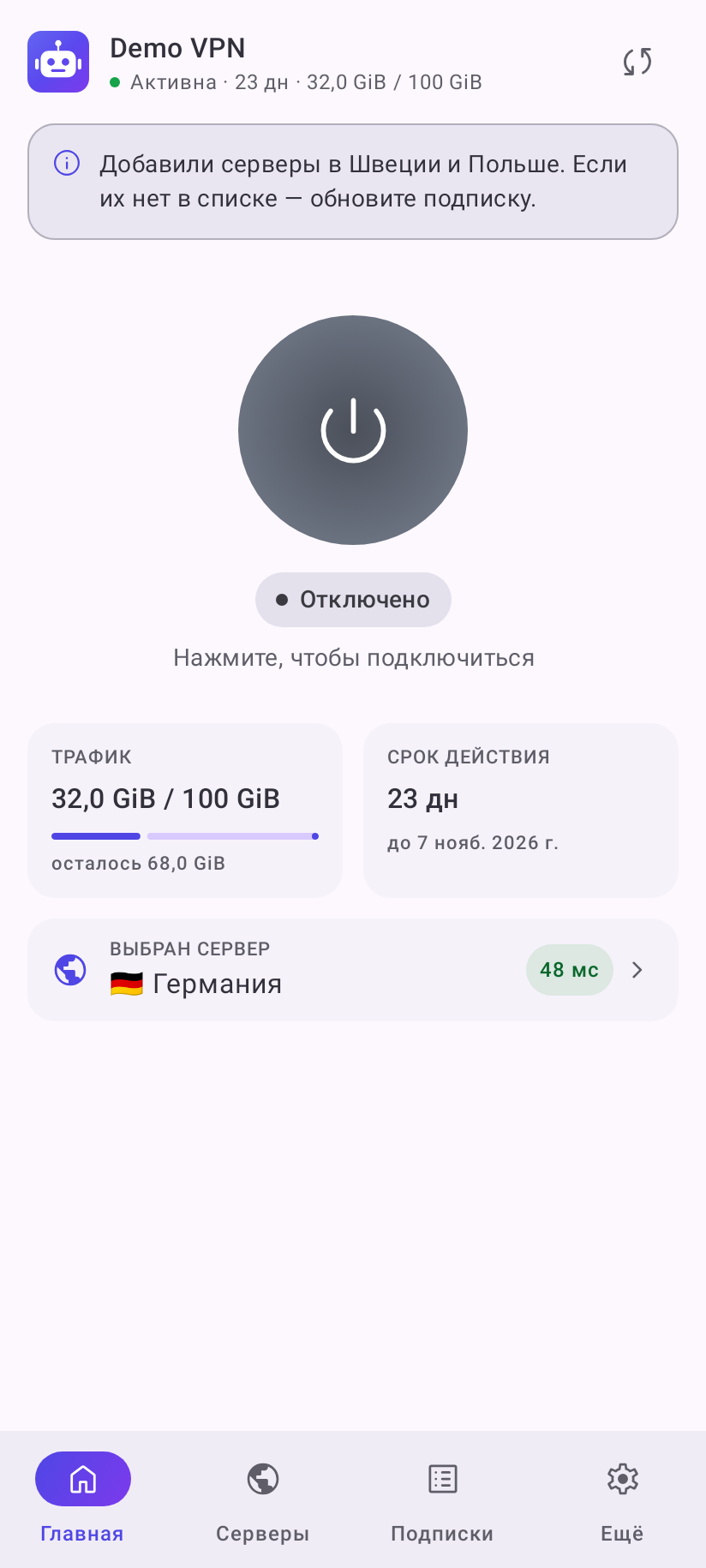
From top to bottom:
- Header — the logo and name of the selected subscription, with a colored dot and a short state under it: “Active · 23 d · 32.0 GiB / 100 GiB”. On the right is the subscription update icon. If two auto updates in a row have failed, the icon is highlighted — tap it.
- Provider announcements — text from your provider: maintenance, new servers, promotions. Long text is folded, the arrow on the right unfolds it. A promo banner can be closed with the cross — it comes back only when the provider sends a new text.
- Subscription card — appears only when three days or less are left, the traffic has run out or the subscription has expired. It shows what is left and the Customer portal and Support buttons.
- Connect button and the state: “Disconnected”, “Connecting…”, “Connected”.
- Traffic and Expires in — while the tunnel is off and the subscription is Active, if the provider sends these numbers; with three days or less left, the subscription card (item 3) replaces them. After connecting they are replaced by the session timer and session traffic.
- Selected server / Connected to — which server carries the traffic of the main group, with its delay. If the server was picked by a group inside it (for example, auto selection), a small line under the server name says “via” and that group's name. Tapping it opens the main group on the Servers tab.
Instead of a server name, the row may say:
- Direct — the group has direct access selected, its traffic goes around the servers;
- Blocked — the group leads to a block, its traffic goes nowhere; the row looks the same when the provider has taken the servers away (device limit, expired subscription);
- Servers are available only on a mobile network — every server of the group is for mobile internet only, and the phone is on Wi-Fi or another network: the group does not work until you are back on the SIM network;
- Direct, no servers (the Mode row) — direct mode is on, see Modes.
All groups on Home
By default the home screen shows only the main group of the subscription. To see which server each group uses (video, AI services, local sites and so on), turn on More → Look and behavior → All groups on Home.
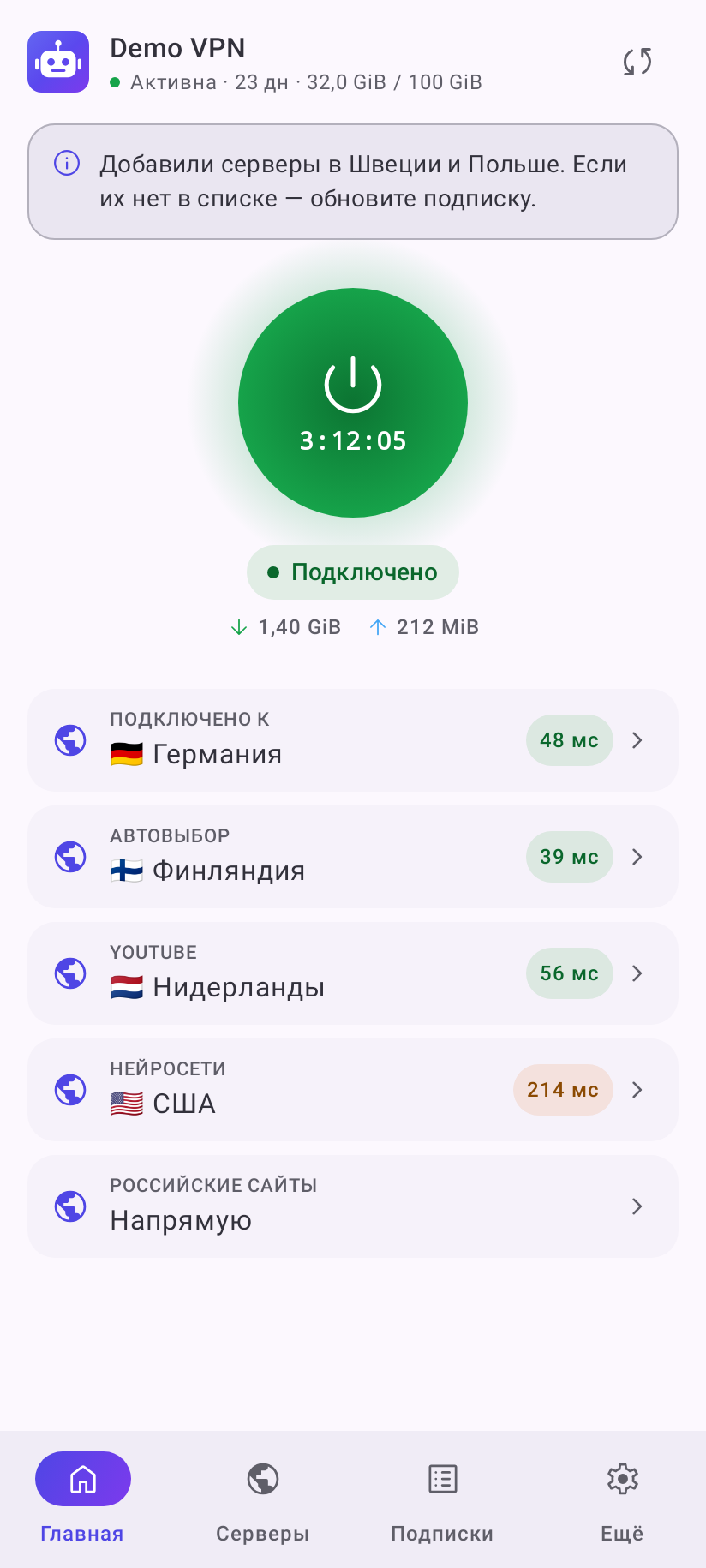
Rows for all other groups appear under the main row — with the group name, the selected server and its delay. Tapping a row opens that group on the Servers tab, where you can change the server. Groups that lead to a block are not listed.
Group icons (same screen) shows icons next to the names if the provider sent them.
Apps are not going through the VPN
If More → Apps is set to “Allow selected apps”, nothing is checked, the provider did not turn on the “Allow all apps” mode and the subscription did not send its own app list (or sent an “only these apps” list and none of them is installed), only Clod Clash itself goes through the tunnel — other apps go directly. Then a banner “Apps are not going through the VPN” sits under the connect button, and while the VPN is on, a sheet with the Choose apps button slides up every time Home opens. “Later” closes it until next time. As soon as at least one app is checked, an app from the subscription list goes through the tunnel or the provider turns on the “Allow all apps” mode, the sheet and the banner go away by themselves.
If there are no servers
When the provider sends no servers, a card with the reason appears above the announcement (orange for “Out of traffic”, red otherwise) with a hint: renew the subscription, wait for the traffic to refill, turn on device identification or contact support.
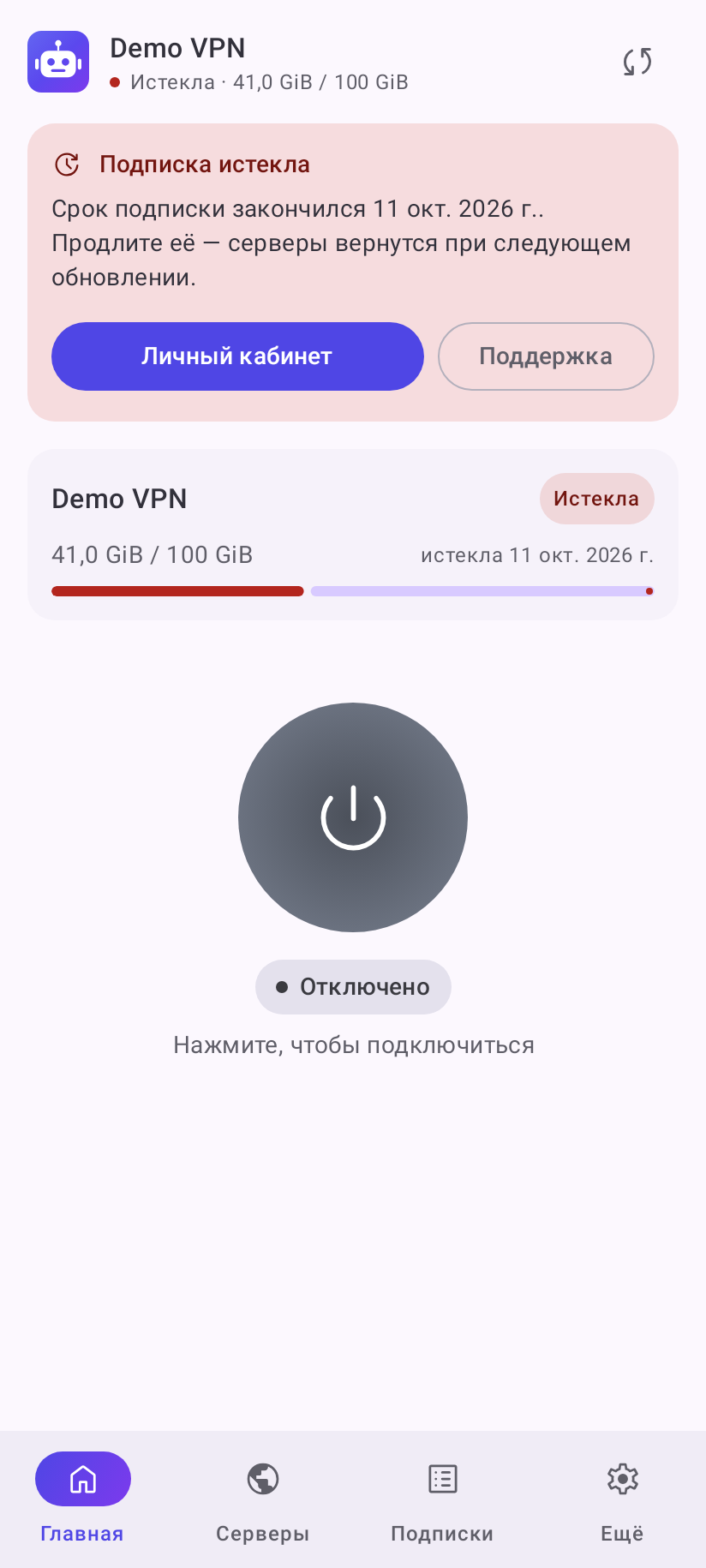
All reasons are in Common errors.
Dark theme
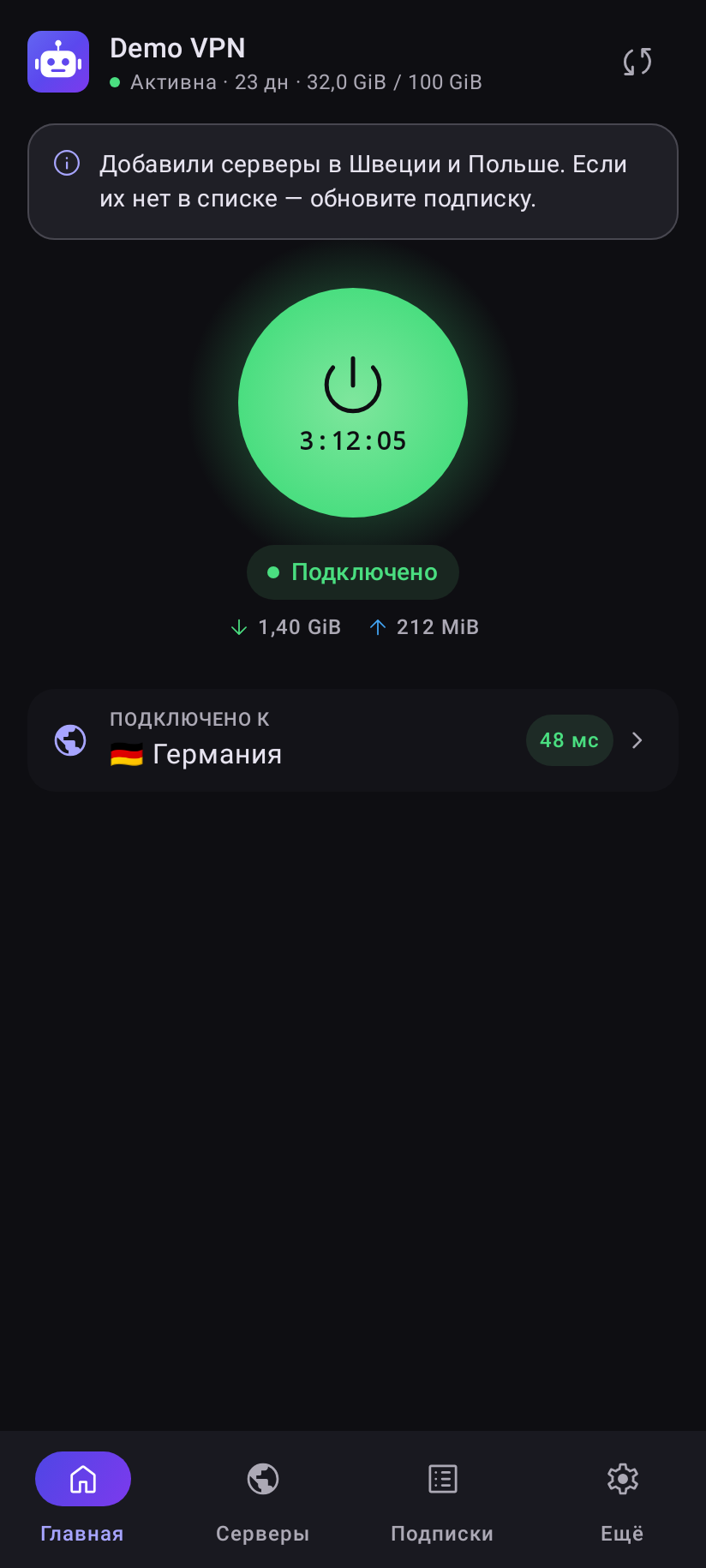
Switch the theme in More → Look and behavior → Dark mode: follow the system, always light or always dark.