 Clod Clash
Basic setup
What to set up after adding a subscription: apps for the VPN, battery, autostart, theme and language
Once the subscription is added, the app is ready to work. Still, a few settings are worth doing right away — then the VPN works where you need it and does not drop in the background.
Which apps go through the VPN
More → Apps. This is the main setting, and it is easy to forget.
The mode is at the top:
| Mode | What happens |
|---|---|
| Allow all apps | all apps on the phone go through the tunnel. This mode is not recommended: better narrow the list — allow only the apps you need or deny the ones you do not |
| Allow selected apps | only the checked apps go through the tunnel; the rest go directly |
| Deny selected apps | all apps go through the tunnel except the checked ones |
Right after installation
The default is Allow selected apps with an empty list: until you check something, unless the subscription sent its own app list or the provider turned on the “Allow all apps” mode, no app goes through the tunnel. The hint on this screen and the warning on Home tell you about it. Check the apps that need the VPN.
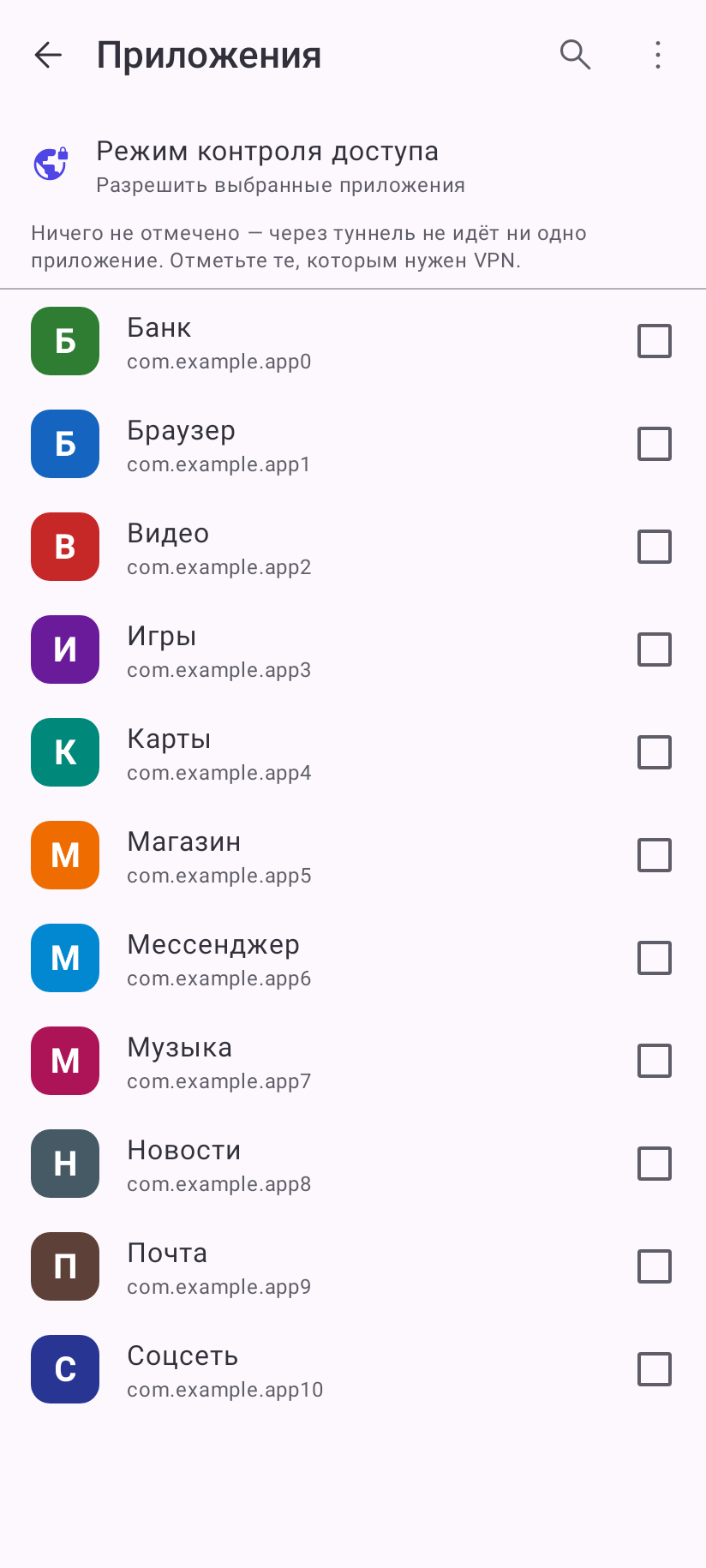
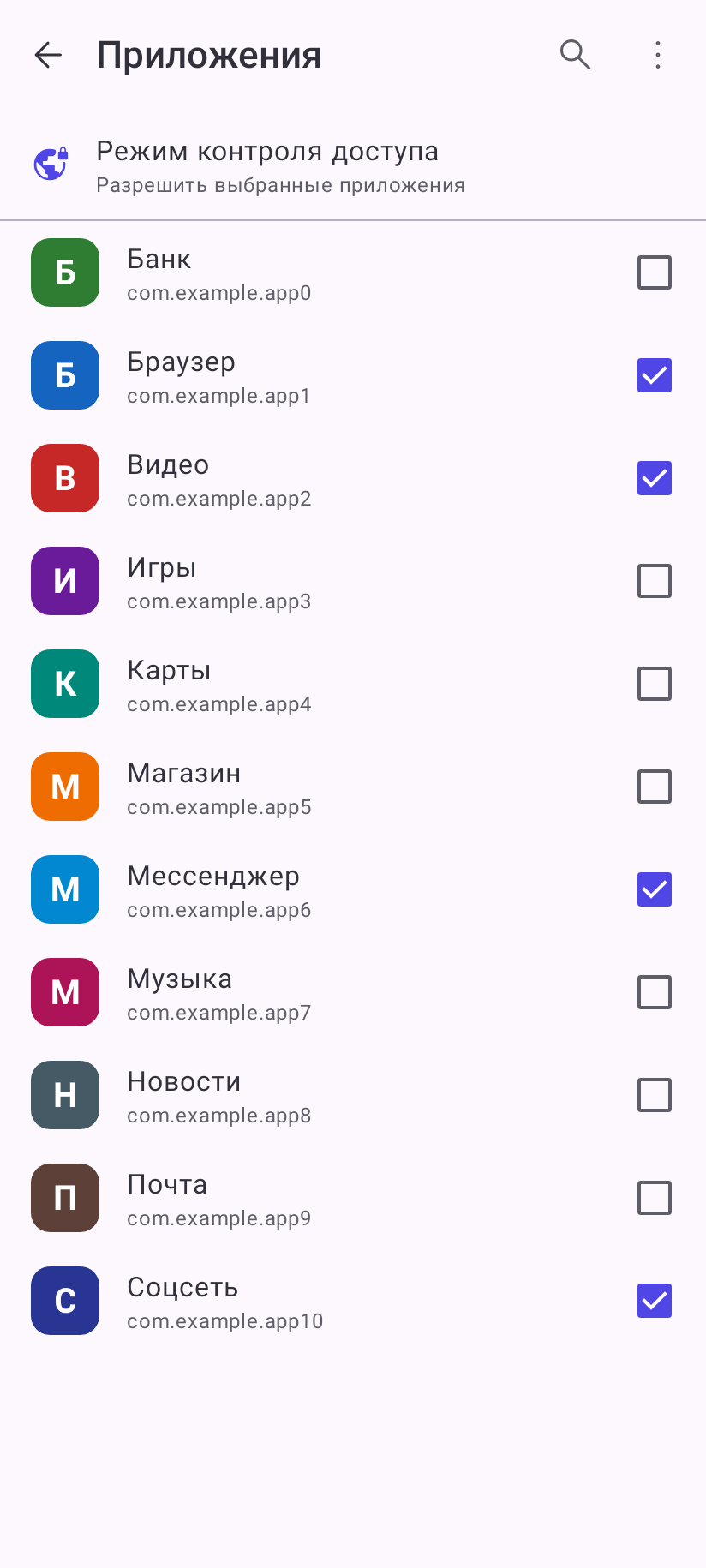
- Tapping a row checks or unchecks the app.
- Search in the header looks through names and package names.
- The ⋮ menu has Select all, Invert selection, Select none — they act on all apps in the list as filtered by System apps (the menu is hidden while searching); Import from clipboard and Export to clipboard — to move the list from another phone; sorting and the System apps filter.
- System apps are hidden by default, except the ones many people need — Google Play services, for example.
The list is applied when you leave the screen: the screen closes at once, and the tunnel, if it is on, restarts in the background.
If your provider sent its own list
A provider can send a list of apps that go through the VPN or around it. Such apps are marked “Via VPN (subscription)” or “Bypasses VPN (subscription)”. While you have checked nothing, the provider's list applies: for example, all apps go through the tunnel except those marked “Bypasses VPN”. A provider can also turn on the “Allow all apps” mode — it too applies while you have checked nothing. The hint above the list says what applies right now.
Banking apps and some government services may refuse to work through a VPN — do not check them. If the provider's list or mode applies and they go through the tunnel, pick “Deny selected apps” and check them.
The first connection
Tap the big button on the home screen. The first time, Android shows a “Connection request” dialog — tap OK. Without this permission the tunnel will not start.
Keep the connection from dropping
After the first successful connection the app once shows the Keep the connection from dropping sheet with two Android settings.
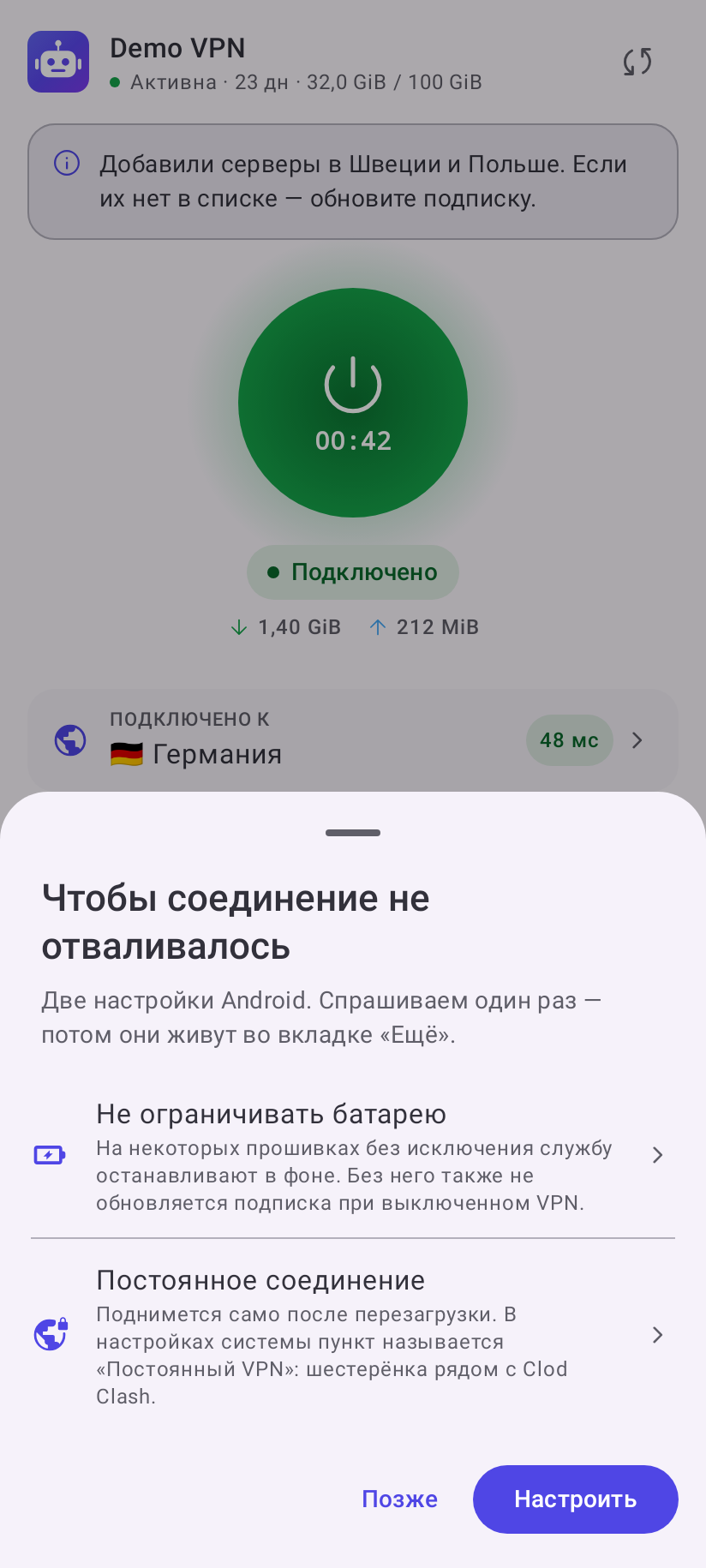
- Unrestricted battery — opens a system request; let the app run without restrictions. Without it, many firmwares stop the VPN in the background, and the subscription does not update while the VPN is off.
- Always-on connection — opens the system VPN settings. Tap the gear next to Clod Clash and turn on Always-on VPN. Then the tunnel starts by itself after a reboot and after the system has closed it.
If you tap Later, the sheet will not appear again, but both settings with their current state stay on the More tab in the Connection section.
Xiaomi, Huawei, Honor, Samsung, Oppo, Vivo
These makers have their own “autostart” and “memory protection” lists. Find Clod Clash in the phone's battery or security settings and allow it to run in the background and start by itself.
Start after reboot
More → Look and behavior → Start after reboot — the tunnel comes up by itself after a phone reboot and after an app update if it was on before. With the system Always-on VPN turned on, this switch is not required.
Theme, language and the home screen
More → Look and behavior:
- Dark mode — follow the system, always light or always dark;
- Language — follow the system, Russian or English;
- All groups on Home — show the selected server of every group on the home screen, not only the main one (details in Home screen);
- Group icons — icons from the subscription next to the group names.
Device identification
More → Look and behavior → Identify this device (on by default). Many providers limit the number of devices per subscription and count them by this value. If you turn it off, such a provider may send no servers — then the home screen shows “Device not identified”. The identifier is hashed: the device value itself never leaves the phone.
What else you can do
- Add the tile to quick settings: open the quick settings editor and drag the Clod Clash tile in. A short tap turns the VPN on and off, a long press opens the app.
- Add the 1×1 widget to the home screen — it turns the VPN on and off with one tap.
- Long-press the app icon for the Toggle, Connect and Disconnect shortcuts.