 Clod Clash
Connecting and servers
How to connect, pick a server, test the delay and pin a server in auto selection
Connecting
Tap the big button on the home screen. While the tunnel is coming up, the button is orange and the text below says what is happening: “Starting the service…”, “Loading the subscription into the core…”, “Restoring the selected servers…”, “Opening the VPN tunnel…”. It usually takes a couple of seconds.
Once connected, the button turns green, a session timer runs inside it, and below it you see how much was downloaded and uploaded during the session. The notification shade holds a notification with a Disconnect button.
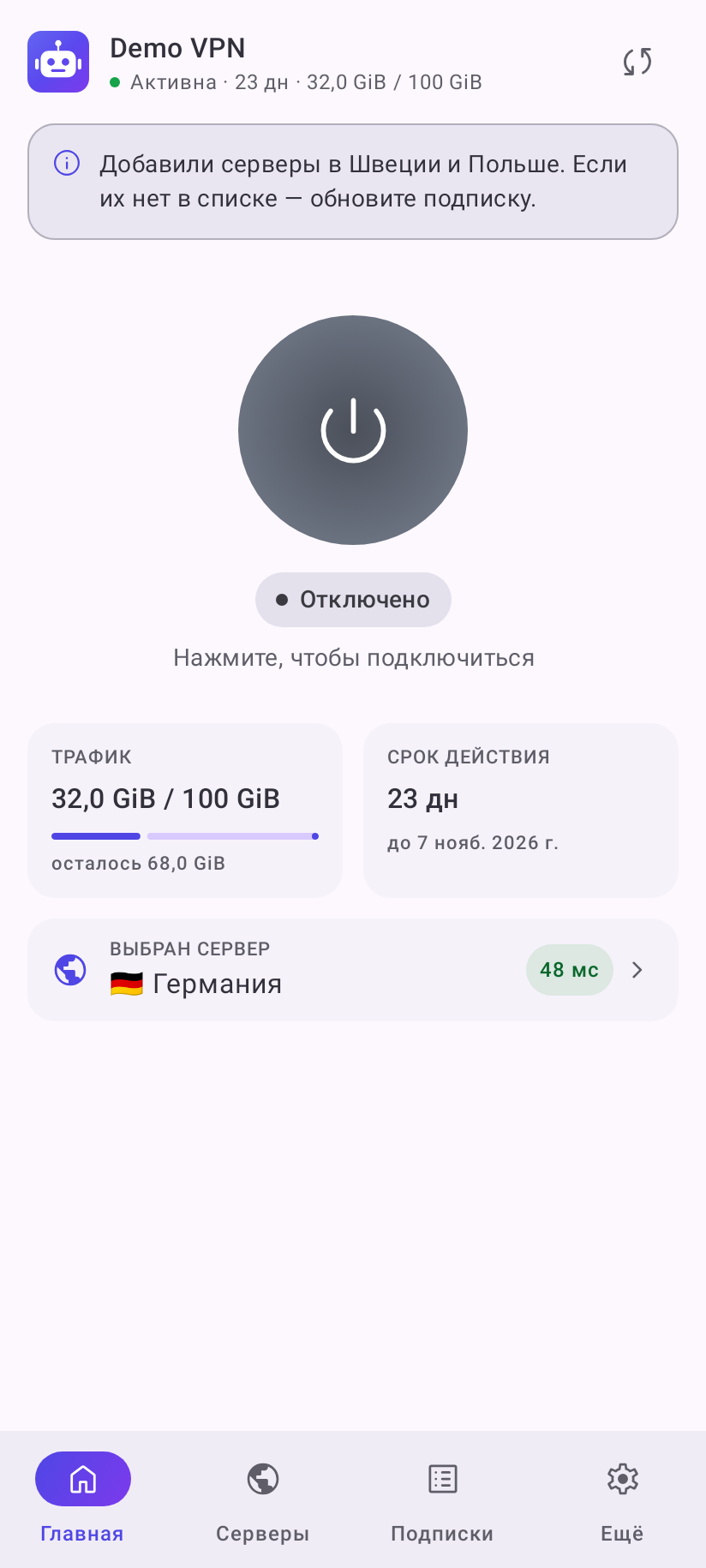
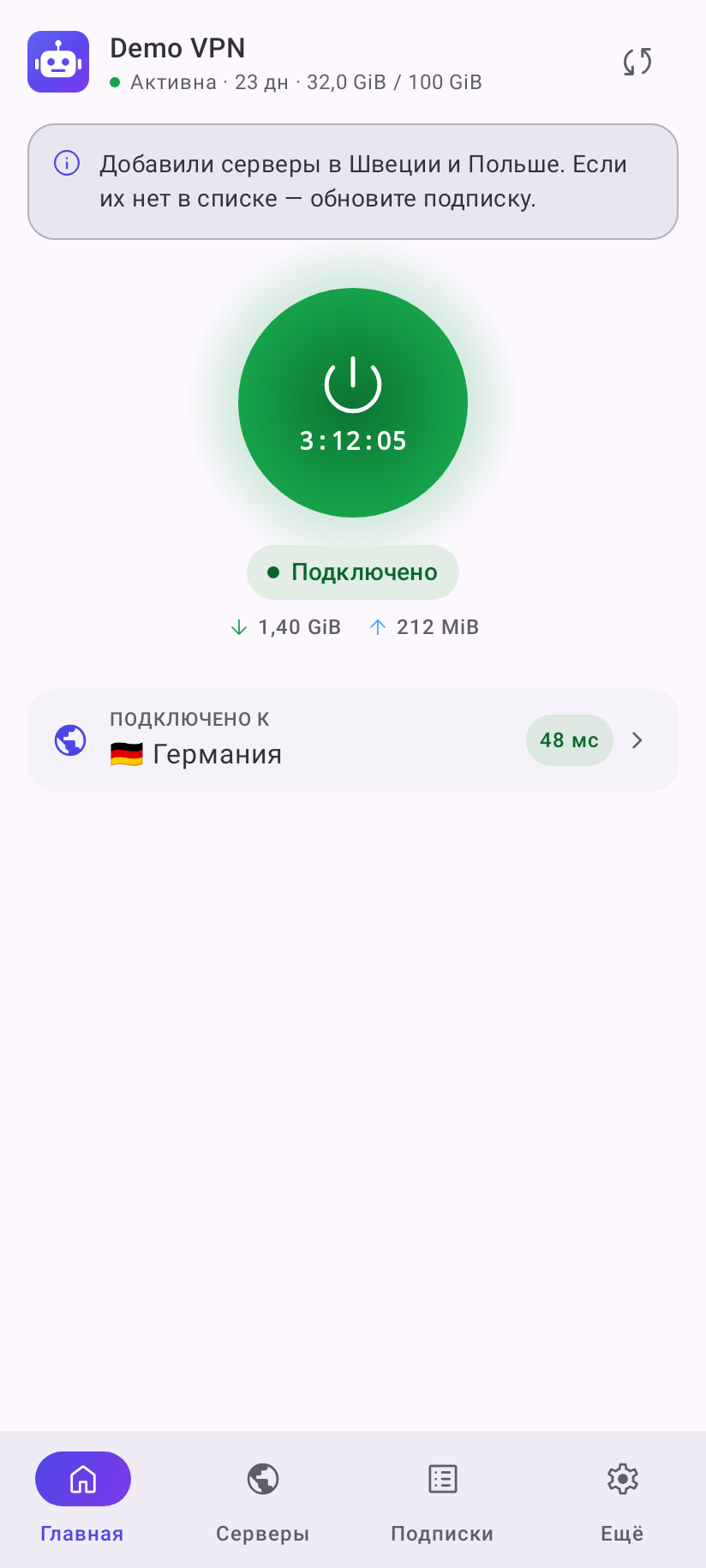
To disconnect, use the same button, Disconnect in the notification, the quick settings tile or the widget.
Picking a server
The Selected server row (after connecting — Connected to) shows which server carries the traffic and its delay. Tapping it opens the Servers tab on the right group.
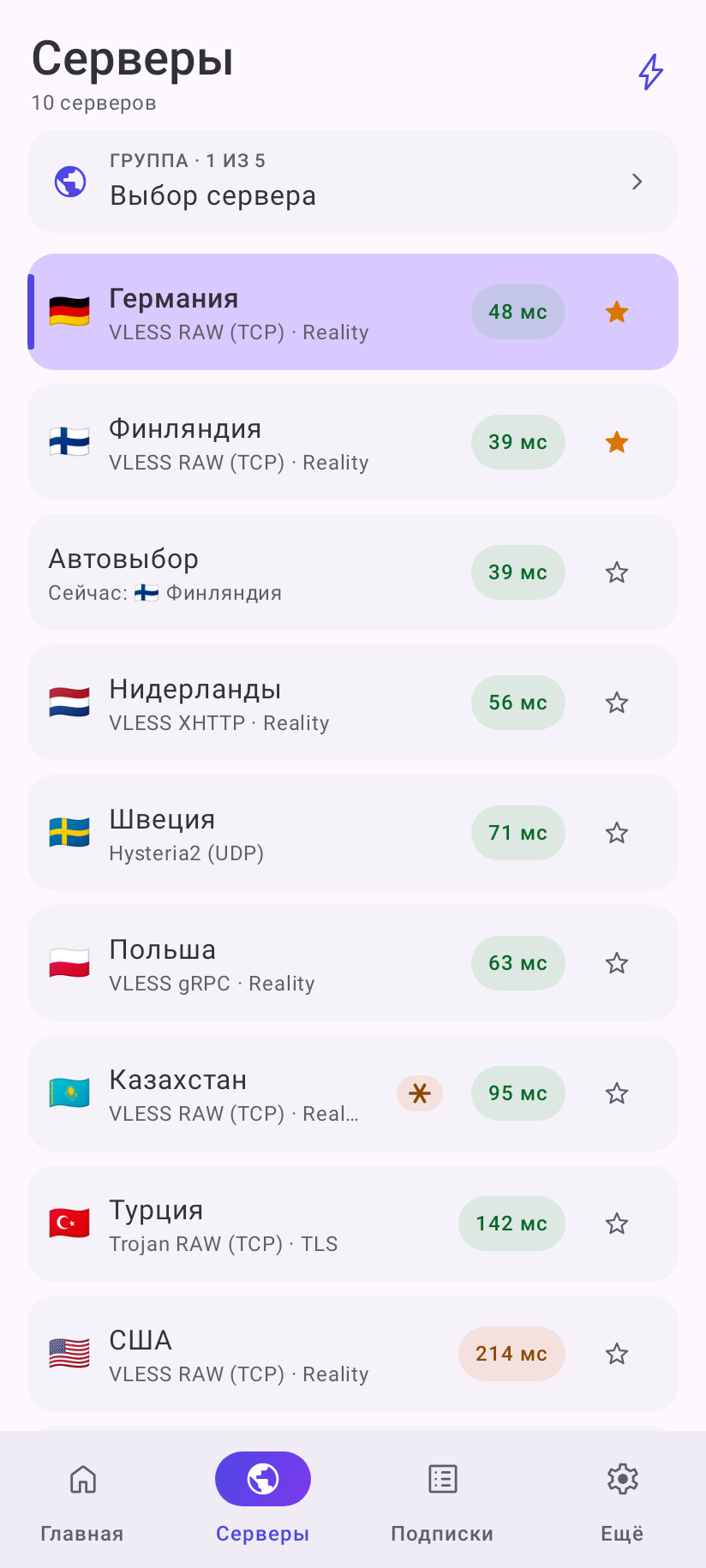
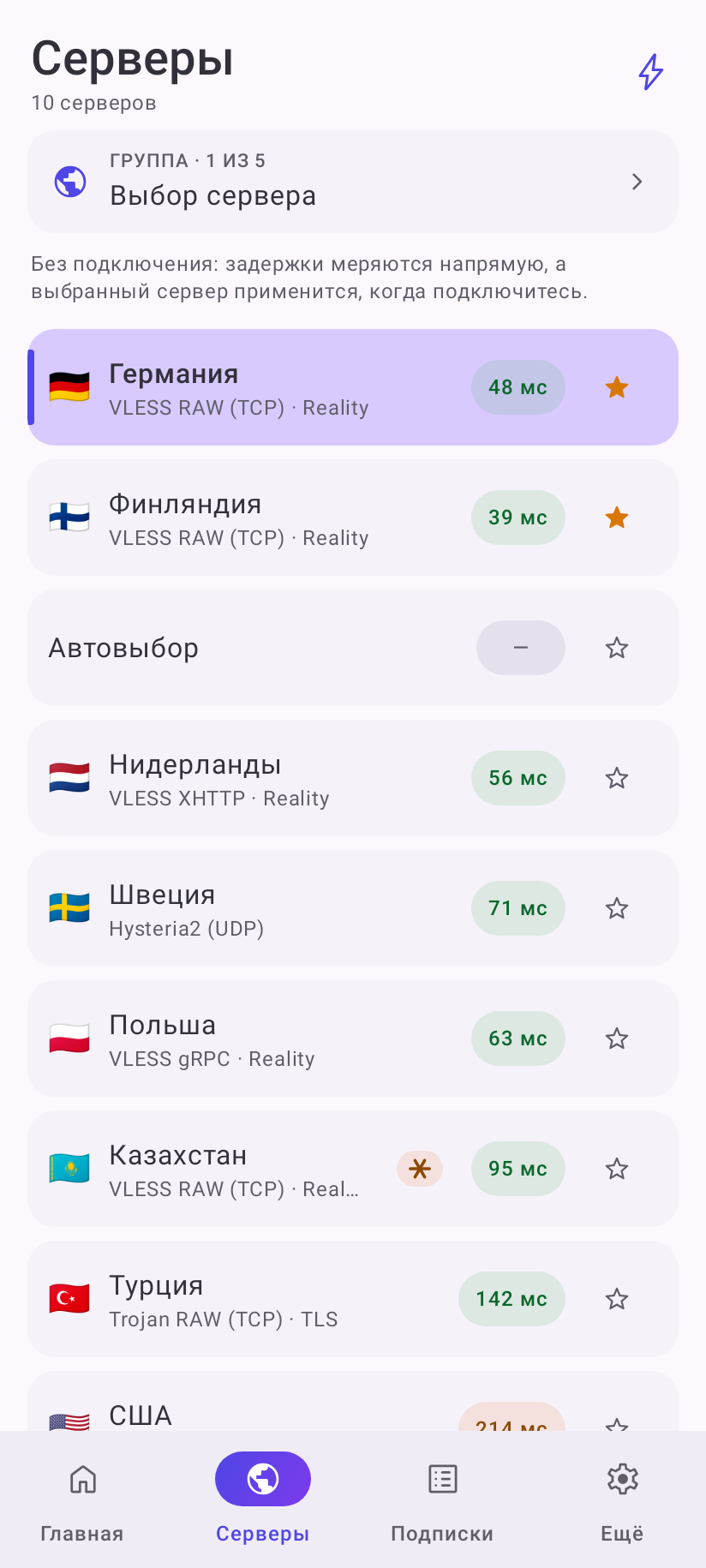
- Tap a server to pick it. The selected one has a bar on the left.
- You can pick before connecting too — the app remembers the choice and applies it when you connect.
- Under the server name is the protocol and security (for example, “VLESS RAW (TCP) · Reality”) or a description from the provider.
- A row with another group inside the list (for example, “Auto”) sends the traffic wherever that group picks; under its name is “Now:” and the server it uses right now, on the right is that server's delay.
Groups
A subscription usually splits servers into groups: manual choice, auto selection by delay, separate groups for video or AI services. With two or three groups there are switches above the list; with more, a drop-down “Group · 1 of 5”. Which group handles what is decided by the provider's rules.
Auto selection and “Pinned”
In groups that pick a server by themselves (auto selection by delay, fallback), you can still pick a server by hand — it gets pinned, “Pinned” appears under it, and the group stops switching on its own. To bring auto selection back, tap the pinned server again.
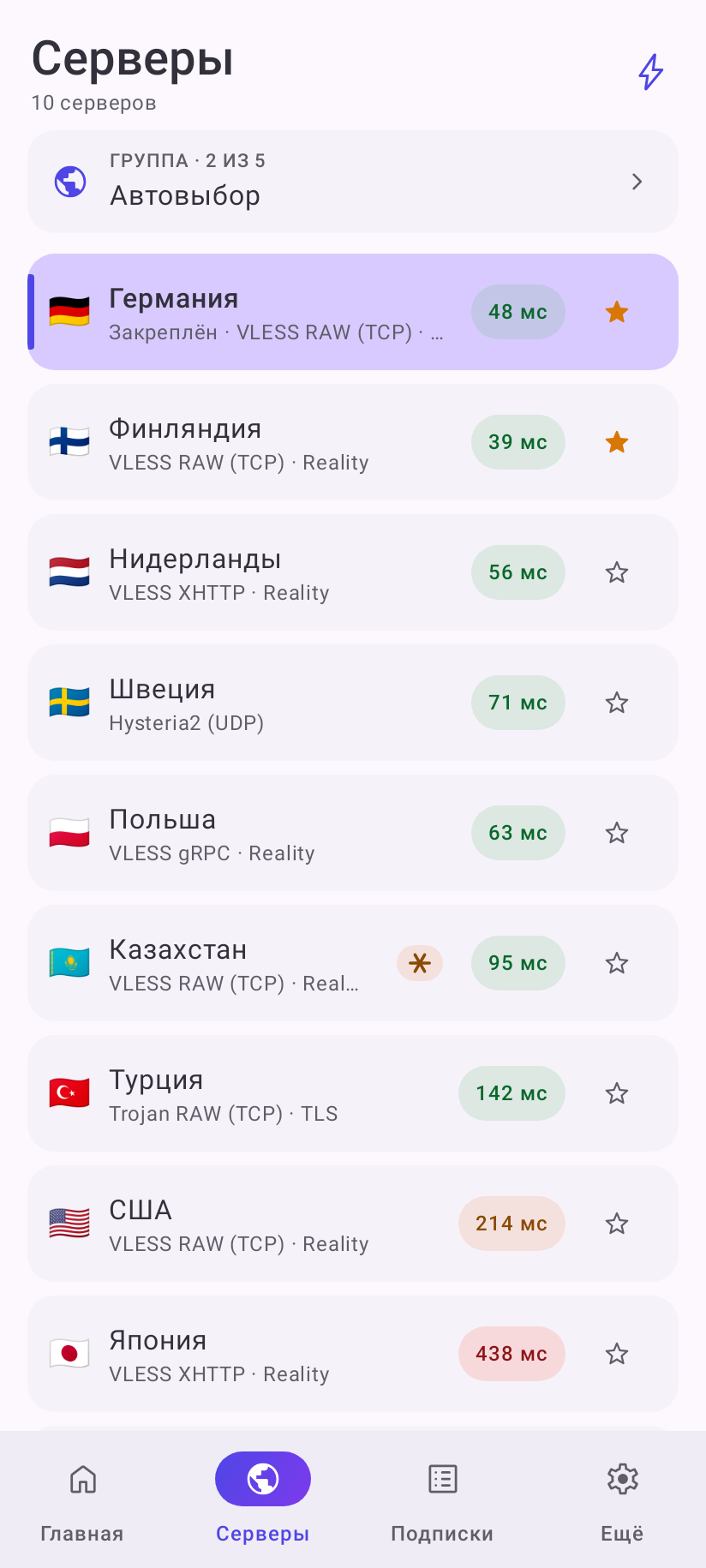
Some groups cannot be picked from at all — then the app says “The core picks the server in this group automatically”.
Delay
The number on the right is the server response time in milliseconds:
| Look | Meaning |
|---|---|
| green | under 200 ms — fast |
| yellow | 200–399 ms — medium |
| red | 400 ms and more — slow |
| red dash | the server did not answer the test |
| grey dash | not tested yet |
The provider can change the color limits. If the provider turned milliseconds off, you see a check mark (answers), a cross (did not answer) or a dash (not tested) instead of numbers.
The lightning button in the tab header tests the delay again: first the open group, then the rest. While the test runs, the header says how many servers are being tested. Servers are also tested by themselves — on connecting, after a network change and periodically while the tunnel is on.
Without a connection the delay is measured directly from the phone — the numbers may differ from those through the tunnel.
Favorites
The star on the right of a server adds it to favorites — favorite servers move to the top of the list in every group. Tap again to remove it.
Server badges
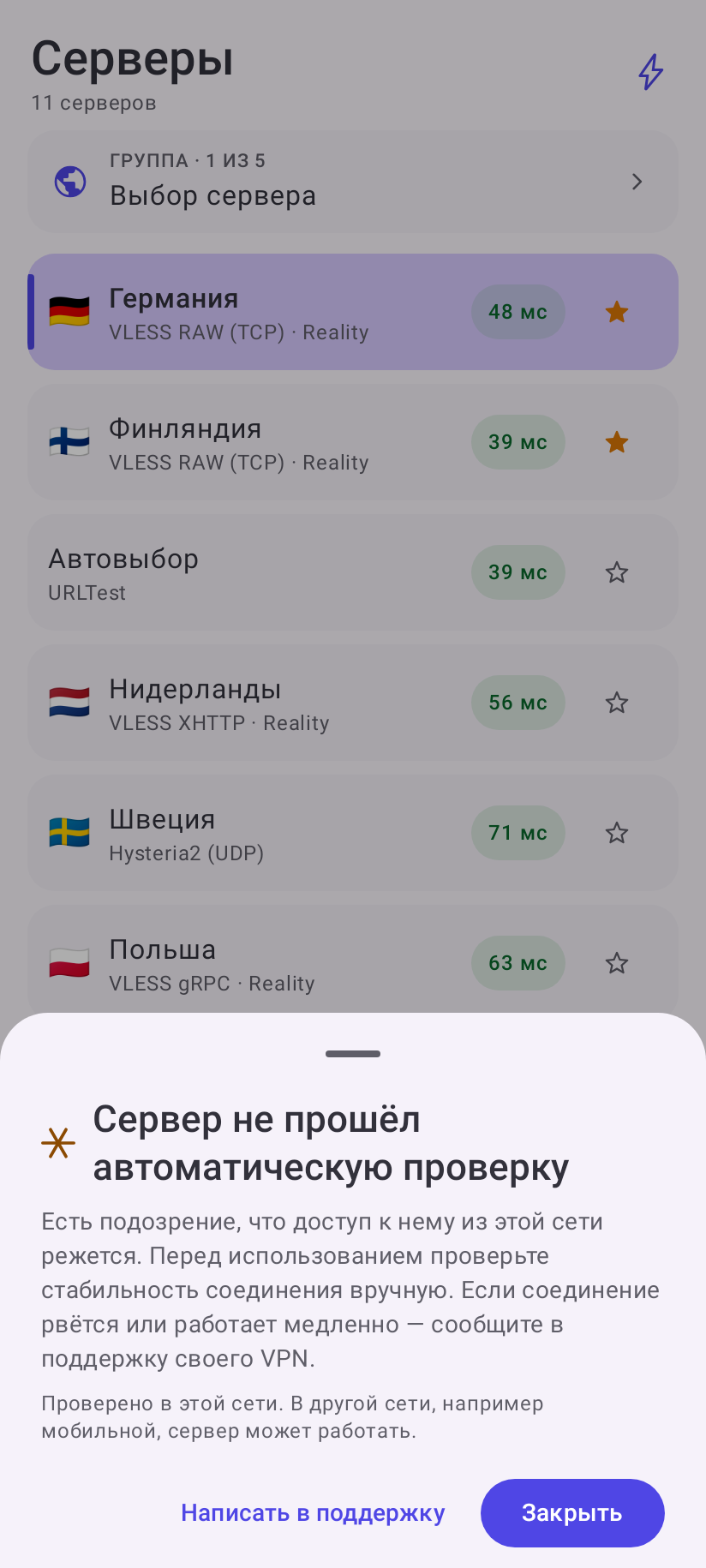
- Snowflake next to the delay — the server failed the automatic check: access to it from this network may be throttled (downloads break off after the first kilobytes). Tap the badge for an explanation and a Contact support button. You can use the server, but check that the connection is stable first. The provider turns this check on; on another network, mobile for example, the server may work.
- mobile network — a server for mobile internet only. On Wi-Fi such servers are hidden.
If there are no servers
Instead of the list you see a card with the reason: the subscription expired, the traffic ran out, the device limit is reached, the device is not identified or the provider sent no servers. What to do in each case — in Common errors.