 Clod Clash
Adding a subscription
Where to get the link, how to add a subscription, set up its updates and move it to another phone
Where to get the link
Your provider gives you the subscription link — usually in the customer portal, a Telegram bot or an email after payment. It looks like this:
https://sub.example.com/a1b2c3d4Only https:// links are accepted. Invite links clodclash://install-config?url=… and
clash://install-config?url=… can be opened from the browser or the provider's portal: the app opens
the new subscription's properties with the link filled in — tap the save button in the header. You
can also paste such a link (or
clashmeta://install-config?url=…) into the field instead of a regular one.
The link is a key
Anyone with the link can use your subscription. Do not publish it or forward it to strangers.
Add a subscription
Open the Subscriptions tab and tap Add subscription. If you already have subscriptions, the button is + in the tab header.
Paste the link into Subscription link and tap Add subscription.
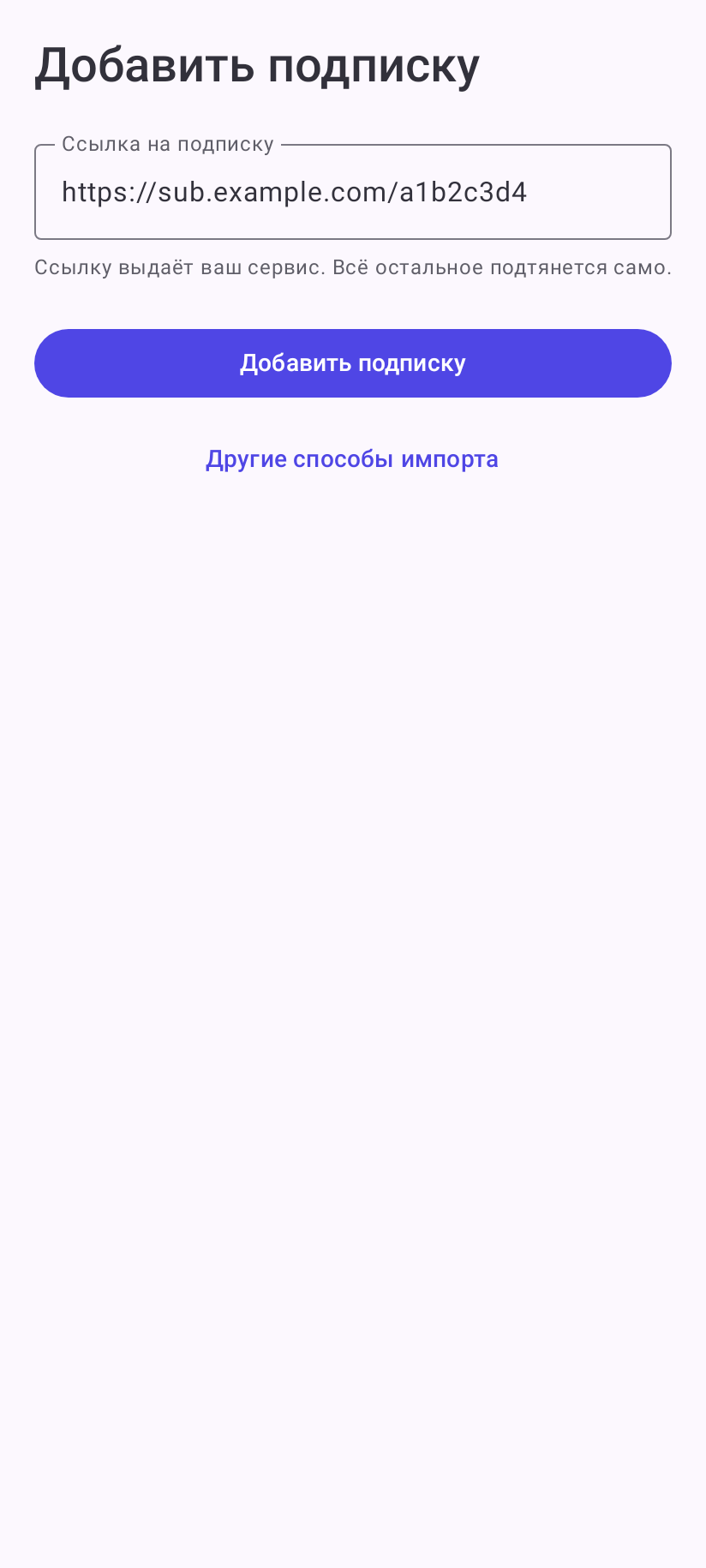
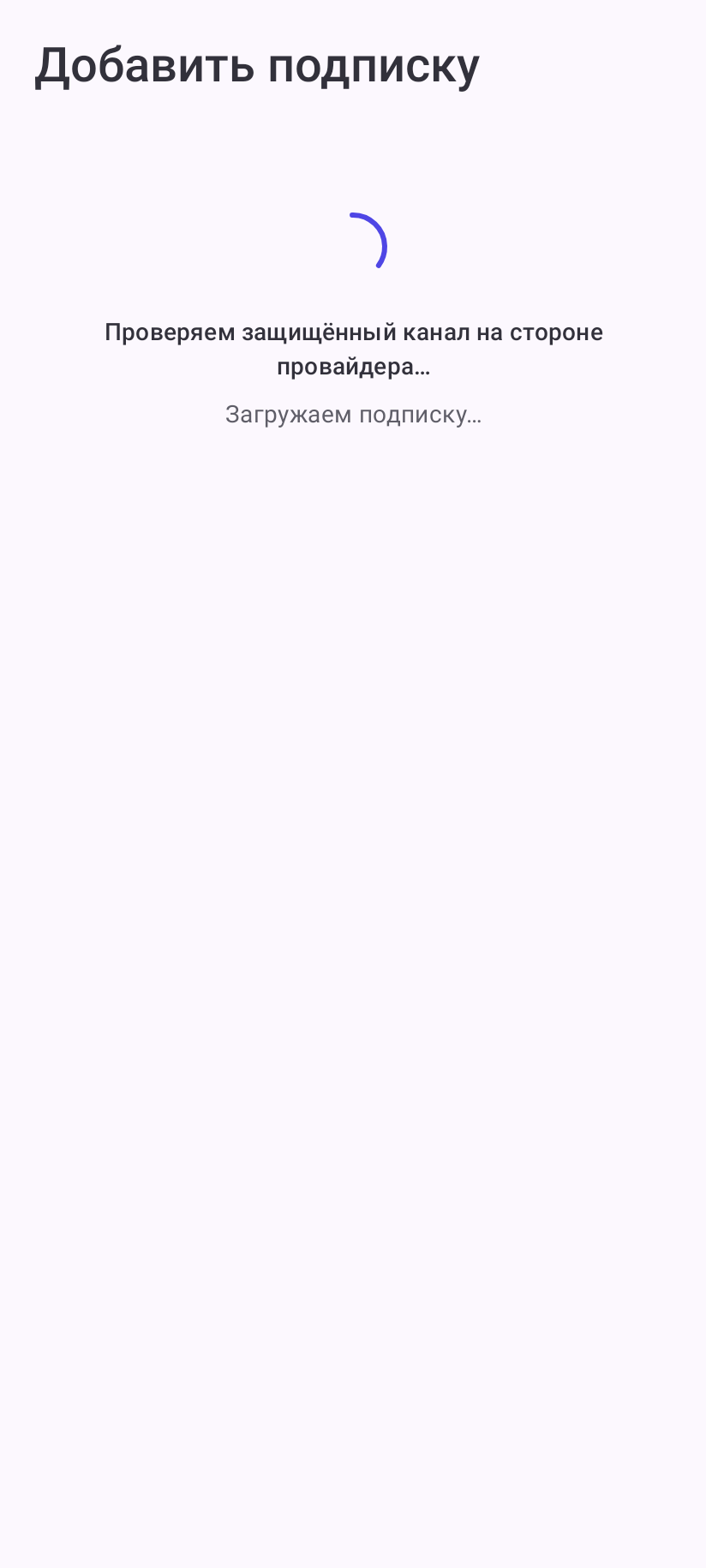
Wait a few seconds. First the app checks whether the provider has a secure channel, then it downloads the subscription and checks it. The screen tells you what is going on.
Done: the app returns to the home screen and says “Subscription “…” added”. The first subscription becomes the selected one right away — you can connect.
If the subscription cannot be added, the reason appears under the link field and nothing is saved. If you left the adding screen earlier, the reason comes to Home as “Subscription not added: …”. What each reason means — in Common errors.
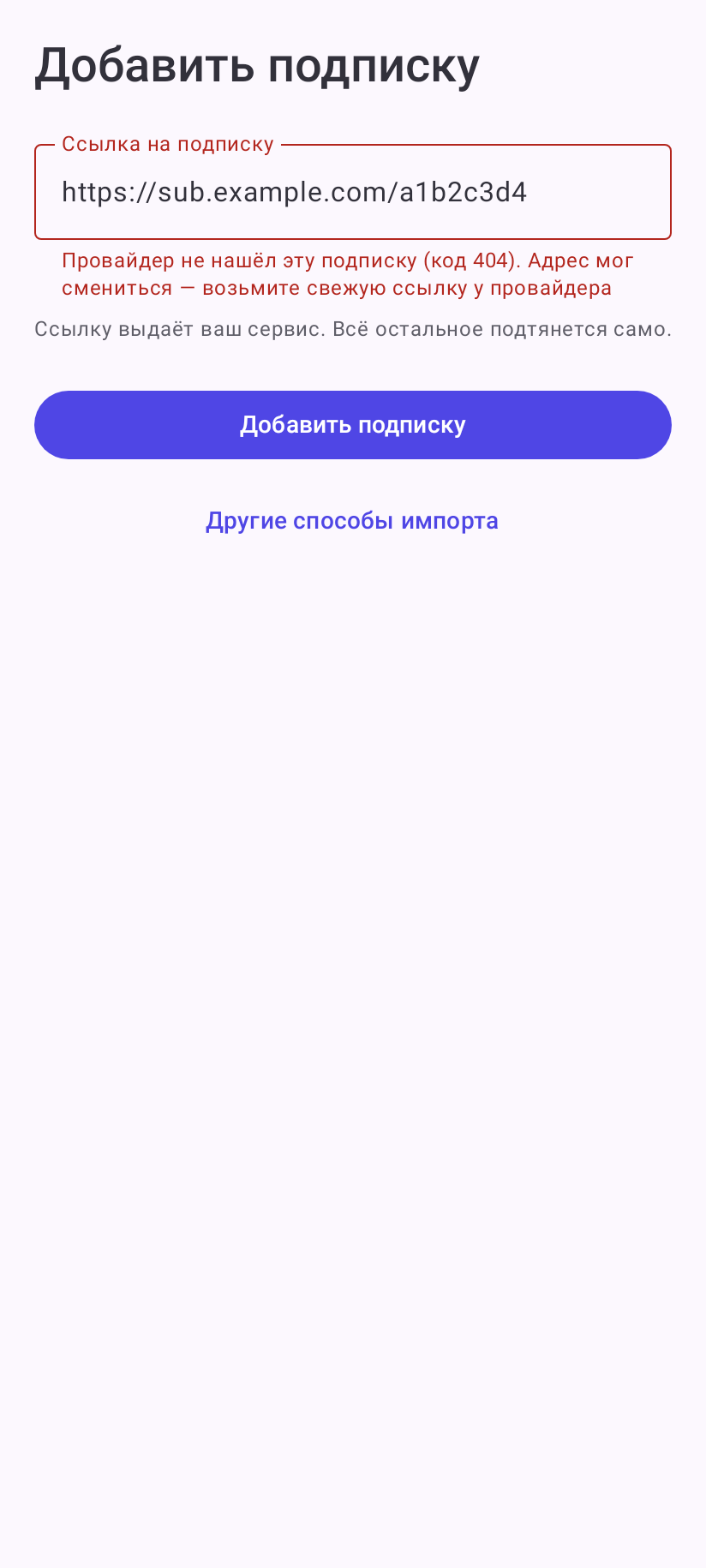
Other ways to import (the button under the field) — a subscription from a configuration file on the phone or from an arbitrary URL. Regular users do not need them.
Provider secure channel
This is not plain HTTPS (that is always used) but an extra layer of encryption with the provider on top of it: the link, the device details and the server list travel inside it, and middlemen on the way cannot see them. It works only if the provider supports the channel.
There is no switch when adding — the app decides by itself:
- the provider has the channel — the subscription is added through it;
- there is no channel — the app says “The provider has no secure channel — loading the usual way…” and adds the subscription the regular way;
- the server does not answer — the app tries again (“Trying again (2 of 3)…”), three attempts in total; nothing is added. If the cause is in the network, the app names it (for example, “The subscription server did not answer in time…”); otherwise it says “The provider's server is not responding”.
Several subscriptions
You can have as many subscriptions as you like, but only one works — the selected one: its card is highlighted and its name is shown in the home screen header. To switch, tap another card. The label on the right of a card is the state of the subscription itself: Active (in force), Expiring (three days or less left), Out of traffic, Expired.
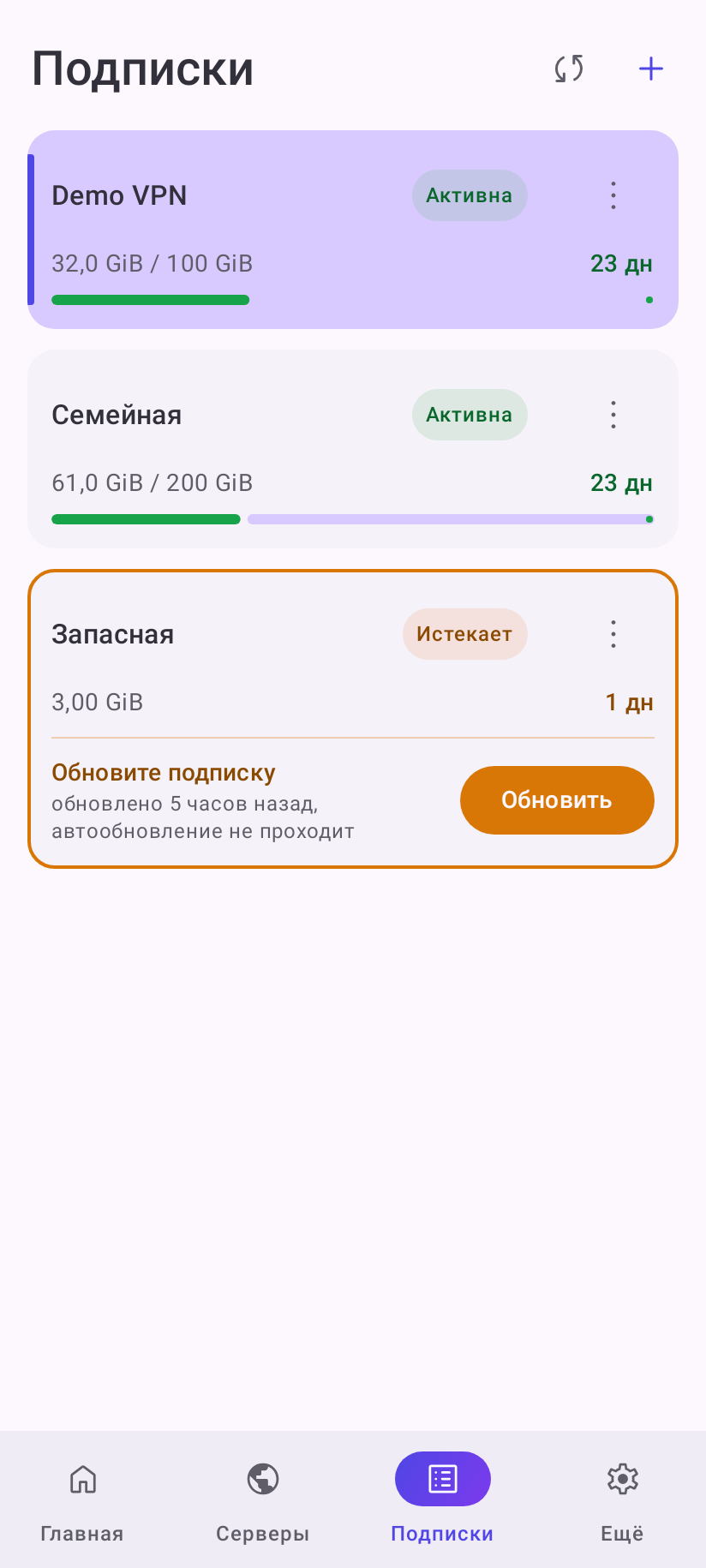
A card shows used traffic and days left. The card menu ⋮:
| Item | What it does |
|---|---|
| Update | download the subscription again right now |
| Edit | open the properties: name, link, auto update, secure channel |
| Group | sort subscriptions into groups — tabs “All” and the group names appear above the list |
| Delete | erase the subscription and its settings; cannot be undone |
Subscription properties
Card menu ⋮ → Edit. Save the changes with the button in the header.
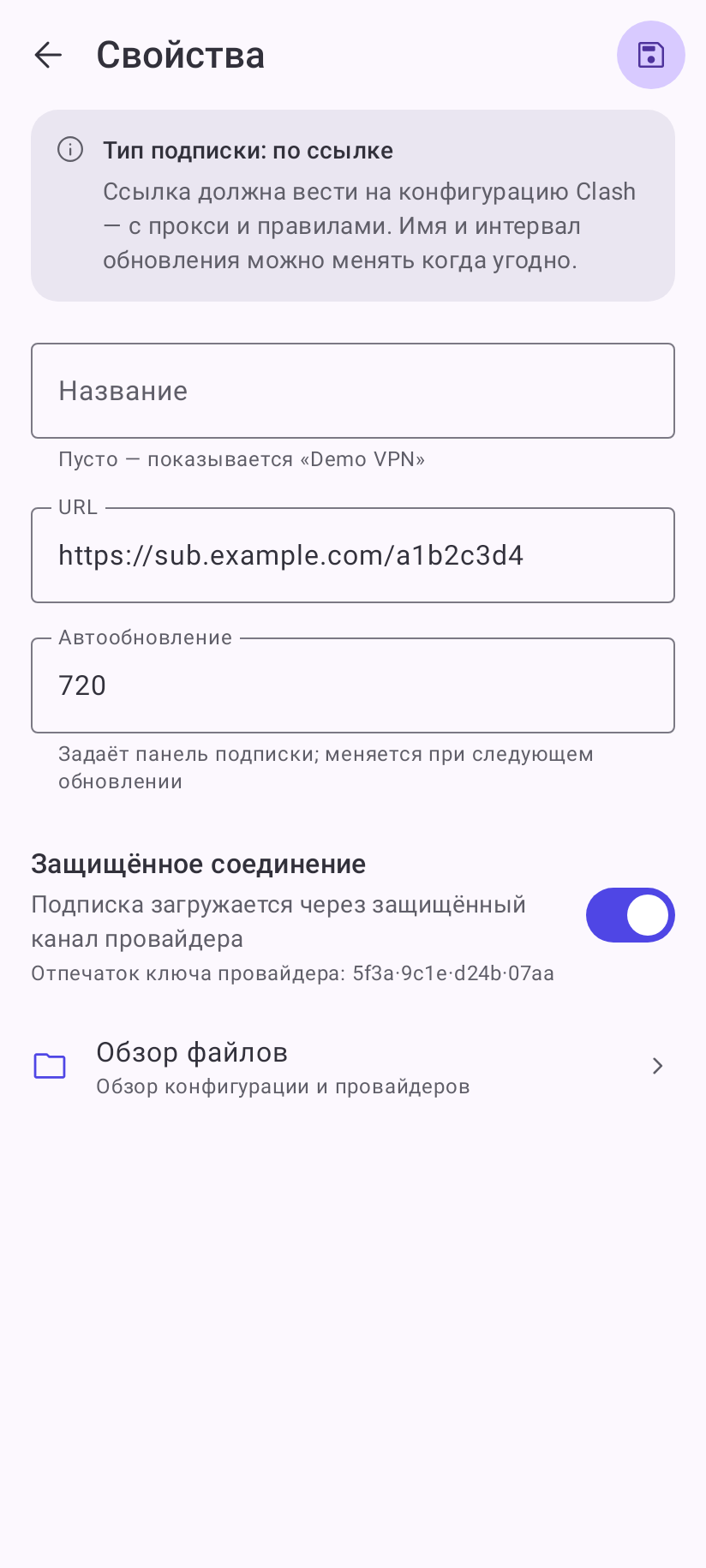
- Name — your own name for the subscription. Empty — the provider's name is shown. If you set your own, the provider's name stays next to it in brackets.
- Subscription link — if the provider gave you a new link, paste it here: the selected servers, mode and favorites are kept.
- Auto update — how often the subscription is downloaded again, in minutes, at least 15. Until you set your own value, the provider sends the interval (“Set by the provider”). Use the provider value returns the provider's interval. An empty field with no interval from the provider means manual updates only.
- Provider secure channel — can be turned off if your provider asks for it: the subscription then travels over plain HTTPS, without the channel's extra encryption. You can turn it back on right there — the channel is checked on save, and if it does not answer, it stays off. Below is the provider key fingerprint.
- Browse files — the downloaded configuration and set files. Only for those who know what is in there.
Updating the subscription
The subscription updates by itself at the interval from its properties. By hand:
- the update icon in the home screen header — for the selected subscription;
- ⋮ → Update on the card;
- Update all in the Subscriptions tab header.
When the expiry date comes, the app updates the subscription once more by itself — so a renewal or the end message shows up at once, even with auto update off.
If an auto update fails, the card shows “Not updated · updated …”. If it fails twice in a row, the card gets a frame saying Update the subscription, and the update icon on the home screen is highlighted. Tap Update: if the error repeats, the app shows the reason. A successful update clears the marks.
The Subscription update errors and Successful subscription updates notifications are on by default and turned off in More → Look and behavior.
Traffic and expiry
While the tunnel is off and the subscription is Active, the home screen shows the Traffic and Expires in cards if the provider sends these numbers. When three days or less are left, the traffic has run out or the subscription has expired, a subscription card replaces them above the connect button with the Customer portal and Support buttons (if the provider sent these links).
Subscription reminders (in More → Look and behavior) warn in advance about the end of the term and traffic. The thresholds come from the provider; without them — 7, 3 and 1 day before, and at 80, 90 and 100 % of traffic.
Moving to another device
More → Look and behavior → Back up subscriptions writes the links of all subscriptions with their names and intervals to a file. On the new phone — Restore subscriptions and pick that file: the app shows how many subscriptions are in the file and which one becomes selected. Links that are already added are not duplicated.
Do not share the backup file
The file holds the subscription links, and they give access to your VPN.
If your provider limits the number of devices, the new phone takes another slot. Only the provider can free a slot — contact their support.