 Clod Clash
All settings
What is on the More tab: connection, network, dropping connections, background, look, notifications
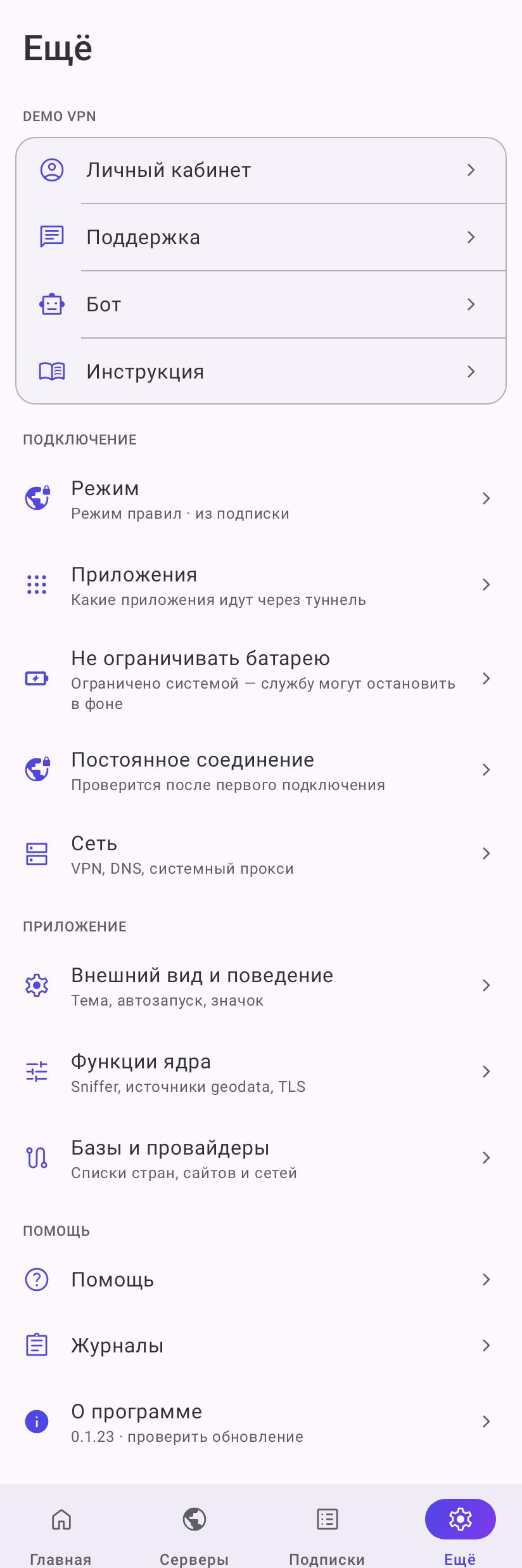
All settings live on the More tab. If the provider sent links, a block with the subscription name sits on top: Customer portal, Support, Bot, Server status, Setup guide — only the links that were sent are shown.
Connection
- Mode — rule, global or direct, see Modes.
- Apps — which apps go through the tunnel, see Basic setup.
- Unrestricted battery and Always-on connection — open the Android system settings; the current state is shown next to them. What they are for — in Basic setup.
- Network — tunnel options, below.
Network
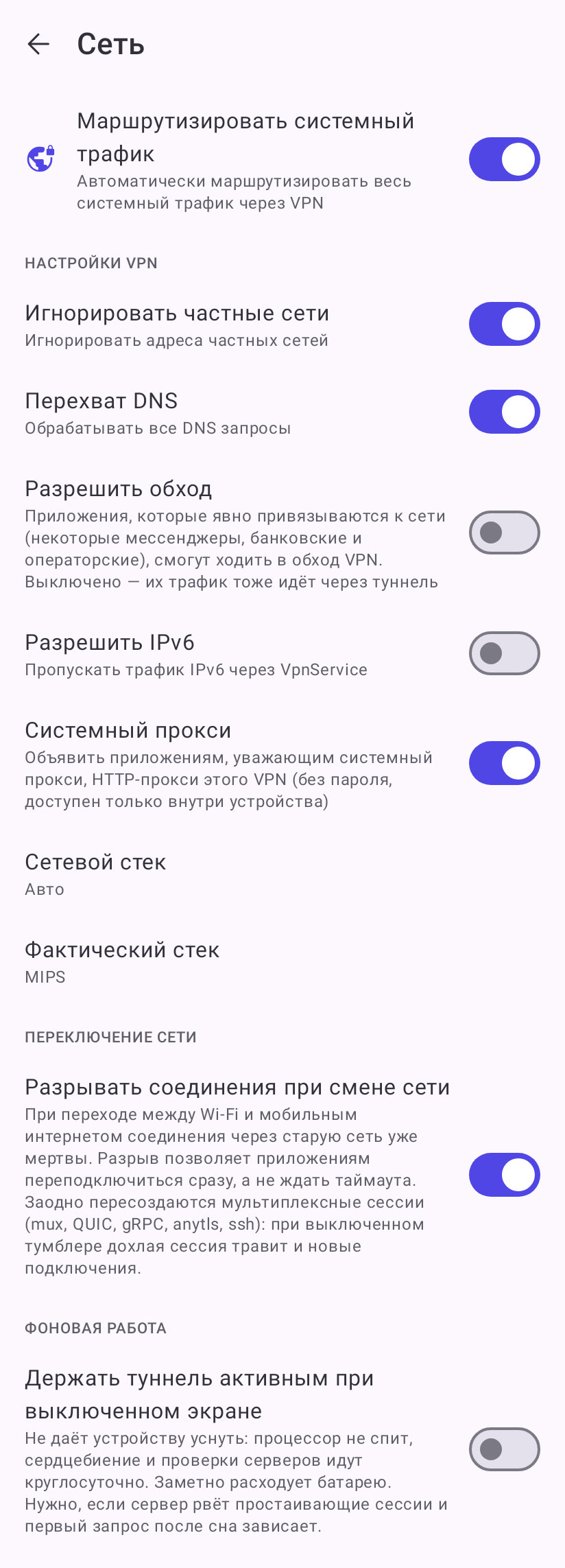
Most items can be changed only while the tunnel is off — while it is on, they are grey and the top says “Available only while the tunnel is off”. The exception is Drop connections when the network changes: it takes effect at once.
| Setting | What it does | Default |
|---|---|---|
| Route system traffic | a VPN tunnel for the whole device; off — local proxy only, see Modes | on |
| Bypass private network | the home network, router, printers and TVs are reached directly, around the VPN | on |
| DNS hijacking | all DNS requests of the phone go through the core — site rules work for every app | on |
| Allow bypass | apps that bind to the network themselves (some messengers, banking and carrier apps) may go around the VPN | off |
| Allow IPv6 | let IPv6 through the tunnel | off |
| System proxy | tell apps that support it the proxy address inside the phone (Android 10 and newer) | on |
| Stack mode | how traffic is captured, see Modes | Auto |
If Private DNS with a server name is turned on in the Android settings, apps get real site addresses around the core, and domain rules do not work for them. The app warns about it on the Network screen. For the VPN, better pick “Automatic” or “Off” in the system.
Drop connections when the network changes
The Network switching section, on by default.
When the phone moves from Wi-Fi to mobile internet and back, all connections open over the old network are already dead. With the switch on, the app drops them at once, and apps reconnect within a second — the messenger is back online, the video keeps playing. Shared sessions with the server (mux, QUIC, gRPC, anytls, ssh) are recreated as well.
If you turn it off, connections are left alone: apps wait for the old connection to time out by itself — that may take from a few seconds to minutes, and a dead shared session also gets in the way of new connections. Turn it off only if network changes are frequent and false for you (say, the phone keeps jumping between two Wi-Fi access points) and the reconnects get in the way — for example, they break a call.
Keep the tunnel active while the screen is off
The Background section, off by default.
Keeps the phone's processor from sleeping: the tunnel, server checks and keep-alives run around the clock. Uses noticeably more battery. Turn it on only if, after the phone has been lying with the screen off, the first request hangs or messages arrive late — this happens when the server drops idle connections.
Look and behavior
Behavior
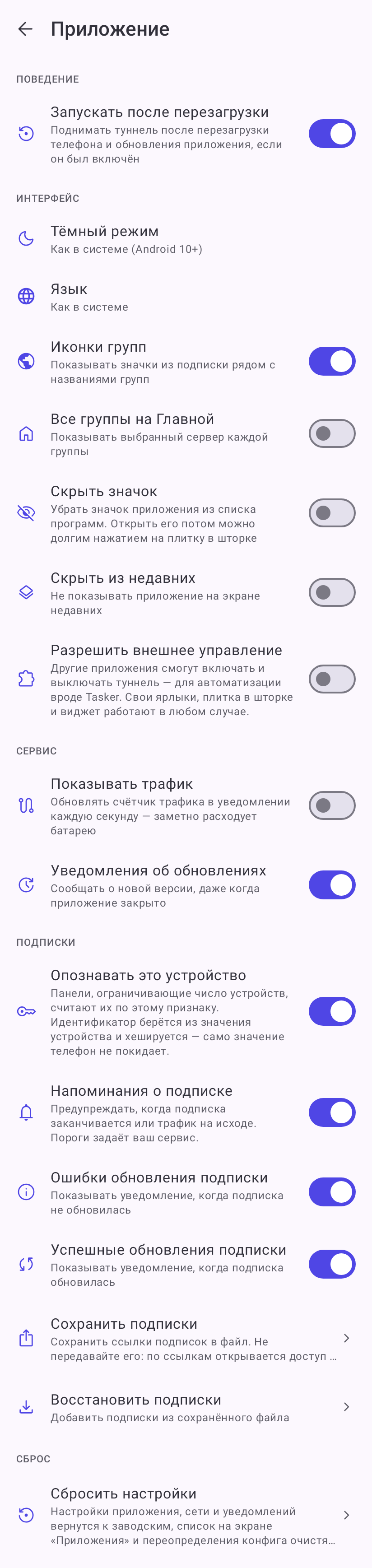
- Start after reboot — bring the tunnel up after a phone reboot and an app update if it was on.
Interface
- Dark mode — follow the system, always light, always dark.
- Language — system default, Russian, English.
- Group icons — icons from the subscription next to the group names.
- All groups on Home — the selected server of every group on the home screen, see Home screen. Off by default.
- Hide app icon — remove the app from the launcher. Afterwards open it by pressing and holding its quick settings tile (a short tap only turns the tunnel on and off) or via the app info in the system settings — add the tile beforehand. The icon shortcuts stop working. Not available on TVs, Android 6 and Android 10 or later: since Android 10 the system itself keeps an icon that leads to the app info.
- Hide from recents — do not show the app on the recents screen.
- Allow external control — lets Tasker, MacroDroid and the like turn the tunnel on and off. Off by default. The app's own shortcuts, tile and widget work either way.
Notifications
- Show traffic — a traffic counter in the notification, updated every second. Uses noticeably more battery.
- Update notifications — tell about a new app version even when the app is closed, see Updates. On by default.
Subscriptions
- Identify this device — send the provider a hashed device identifier for device limits. On by default.
- Subscription reminders — warn in advance about the end of the term and traffic.
- Subscription update errors, Successful subscription updates — notifications about update results.
- Back up subscriptions / Restore subscriptions — moving to another phone, see Adding a subscription.
Reset
- Reset settings — app, network and notification settings return to the defaults, the list on the Apps screen and the overrides are cleared. Subscriptions stay. After a reset the Apps mode is “Allow selected apps” with an empty list: until you check apps again, the subscription's app list or the mode the provider turned on applies; without them, no app goes through the tunnel.
Core features
For those who know what they are changing: Override of configuration parameters on top of any subscription (ports, DNS, mode, hosts), domain sniffing, importing your own GeoIP, GeoSite and ASN databases. The arrow button in the screen header resets all overrides.
DNS is set in Core features → Override → DNS, the Strategy item:
| Value | What happens |
|---|---|
| Do not modify | DNS from the subscription. If the subscription has none — the built-in set below |
| Use built-in | the subscription DNS is replaced by the built-in one: 1.0.0.1, 8.8.4.4, 9.9.9.10 and the system resolver, fake-ip mode |
| Force enable | if the subscription has no DNS — the core defaults: redir-host and the core maker's public resolvers (Chinese ones included); requests go to them from the phone's IP |
Append system DNS adds the carrier DNS to the subscription servers: whichever answers first wins.
If something broke after your edits
If the subscription stopped applying after edits in Override, the app says “Failed to apply the subscription… Check your own edits in the override”. Reset the override and everything goes back to how it was.
Databases and sets
Routing data — lists of countries, sites and networks the core uses to decide what goes through the tunnel — and the server and rule sets from the subscription. Each set has its own update button; the databases are refreshed with Update all in the header. Sets update at once, new databases apply after reconnecting.